BLACK FRIDAY

2× credits · Ends Dec 1

Ends Dec 1, 11:59 pm PTGrab 2× credits

Portrait Retouch Tools

Portrait Retouch Tools for Brighter Smiles and Slimmer Faces

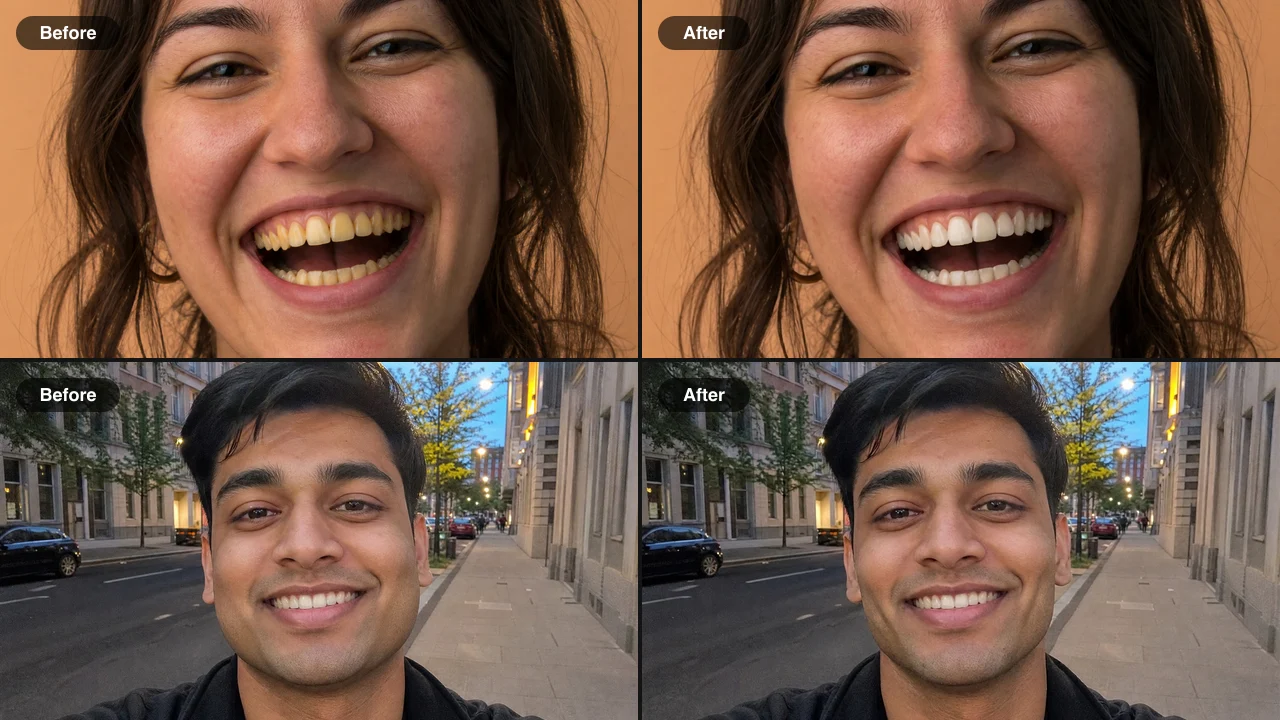
Portrait retouch on FixImage tidies a smile or a wide-lens face in a photo you already like, without learning an editor: Teeth Whitening lifts coffee and tea stains to a natural shade, and Face Slimming visibly slims the cheeks and jawline. Each portrait retouch tool changes only its own area and leaves hair, skin and background as they were. Upload one picture and check it against the original before you download.

Browse the Tools
Before and after grid: yellow teeth whitened on top, a close wide-lens selfie with slimmer cheeks and jaw below

Choose a Portrait Retouch Tool for the Problem You See

Each portrait retouch tool below handles one problem in a picture, so start with the row that describes what bothers you most.

Yellow or Coffee-Stained Teeth

Coffee, tea and warm indoor light can leave a smile looking dull in an otherwise good portrait. Teeth Whitening lifts those stains to a natural off-white, while tooth shape, gums and lips are left as photographed. It is the portrait retouch to run on a profile picture, a wedding album or a selfie, and a short note can protect braces or a crown.
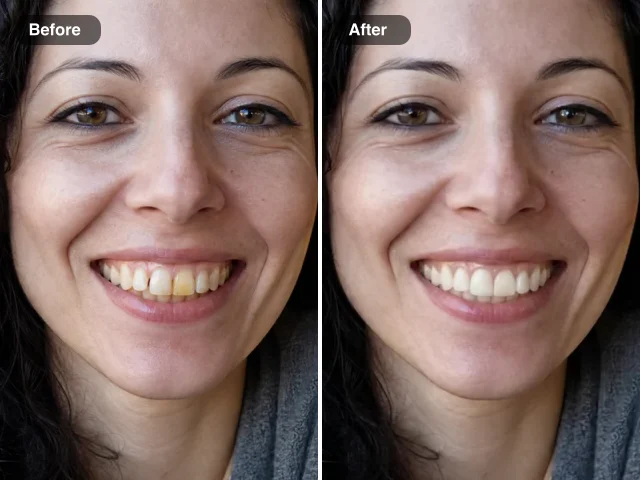
Close-up of a smiling woman before and after teeth whitening: stained yellow teeth left, white teeth right

A Face You Want to Look Slimmer

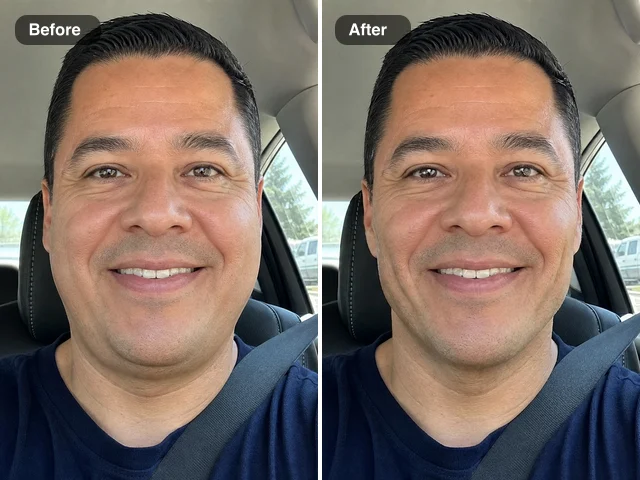
A phone held close or a low camera angle can make cheeks and a jawline look rounder. Face Slimming narrows them visibly and keeps your eyes, smile, hair and background unchanged, so the portrait still looks like you. When one portrait retouch needs both edits, run Teeth Whitening first and then Face Slimming on the downloaded result; a note keeps dimples or a beard line as they are.

Close wide-angle car selfie before and after face slimming: slimmer cheeks and jaw on the right

How to Retouch a Portrait Photo Step by Step

To brighten a smile or slim a wide face, you pick one portrait retouch tool, upload a single picture and check the AI edit against your original before saving.

1

Choose the tool that matches the problem

Open Teeth Whitening when stains or a yellow cast are the issue, or Face Slimming when a close lens widened the cheeks. Each tool already knows its job, so a portrait retouch needs no sliders, masks or written prompt.

2

Upload one clear portrait

Add a JPG, PNG or WebP where the face is sharp and evenly lit, then start the edit. If braces, a crown or a dimple matters to you, type a short note first. Standard runs on Nano Banana 2 Lite and High quality on Nano Banana Pro; both keep the framing of your original.

3

Compare the result, then download

Look at the edited portrait against the original, paying attention to the smile and the jawline. Happy with it? Download the picture or keep it in your Asset Library. If not, add a clearer note and run the portrait retouch again without starting over.

Portrait Retouch Ideas for Photos You Already Love

These everyday pictures are where people choose a portrait retouch over booking a reshoot, whether the issue is a yellow smile or a wide-lens face.

Headshots for work profiles

A LinkedIn photo, a team page or a speaker bio can rely on the one headshot you already like. A portrait retouch lifts a coffee tint from headshots like these, keeps the lighting and pose, and lets you refresh every profile without a new session.

Wedding and party albums

Candid shots from a reception rarely get a second take, and warm venue light makes smiles look yellow. Run a portrait retouch on those files before you share the album or post the favourites, while outfits, guests and the venue stay as the camera caught them.

Close-up selfies

Arm’s-length selfies widen the cheeks and jaw. Face Slimming gives a visibly slimmer face with narrower cheeks and jawline, and Teeth Whitening tidies the smile, so a selfie for a dating profile or a birthday post looks polished.

Graduation and family portraits

A graduation portrait or a three-generation family photo is one people come back to for years. Give each person you choose a portrait retouch, compare every result with the original, and share the version the whole family is happy with.

What People Say After Retouching Their Portraits

Couples always ask me for a few retouched favourites before the full gallery arrives. Last month the groom's smile looked yellow under the marquee lights, so I ran a portrait retouch on twelve shots from the speeches and whitened his teeth in each one. His gran said he looked exactly like himself.

Imogen Castillo
Wedding Planner

Portrait Retouch FAQ

Quick answers on what portrait retouch covers here, which tool to choose, what each edit keeps and what it costs.

Portrait retouch on FixImage is a set of AI tools that each fix one detail in a portrait: Teeth Whitening lifts yellow and coffee stains to a natural shade, and Face Slimming visibly narrows the cheeks and jawline. You upload one photo, start the edit, compare the result with your original and download it.

Match the tool to the problem you see. Teeth Whitening handles yellow or stained teeth, and Face Slimming handles cheeks and a jawline you want to look slimmer. Each portrait retouch tool changes only its own area, and when one picture needs both, run the second tool on the downloaded result of the first.

Yes — Teeth Whitening changes only the color, so the shape, spacing and alignment of your smile stay as photographed. The tool lifts yellow or coffee stains to a natural shade, so the portrait retouch keeps you recognisable in headshots, dating profiles and family photos.

Each portrait retouch tool is built to change only its own area. Teeth Whitening recolours the teeth and leaves skin, eyes, hair and background alone; Face Slimming adjusts only the cheeks and jawline, and a short note can protect details such as dimples or freckles.

A sharp, front-lit portrait where the face fills a good part of the frame gives the most accurate portrait retouch result. Upload a JPG, PNG or WebP image; the edited picture keeps the aspect ratio of your original.

You can start with free credits: sign up and they are added to your account, and daily check-ins add more. A Standard Teeth Whitening or Face Slimming edit uses 6 credits, and High quality, available with a subscription or any credit pack, uses 16; the cost appears next to the Edit Image button before you start.

You choose who sees each portrait retouch edit with the Public Visibility switch on the tool page. Free-plan edits start out public, and a subscription or one-time pack lets you keep every edit private. Whichever you choose, the photo is used only for your own edit.

Give Your Portrait a Brighter Smile Today

Upload one portrait to Teeth Whitening, let the AI lift the stains to a natural shade and compare it with your original. Start your portrait retouch there for a profile, an album or your next post, then download the version you like.

Open Teeth Whitening
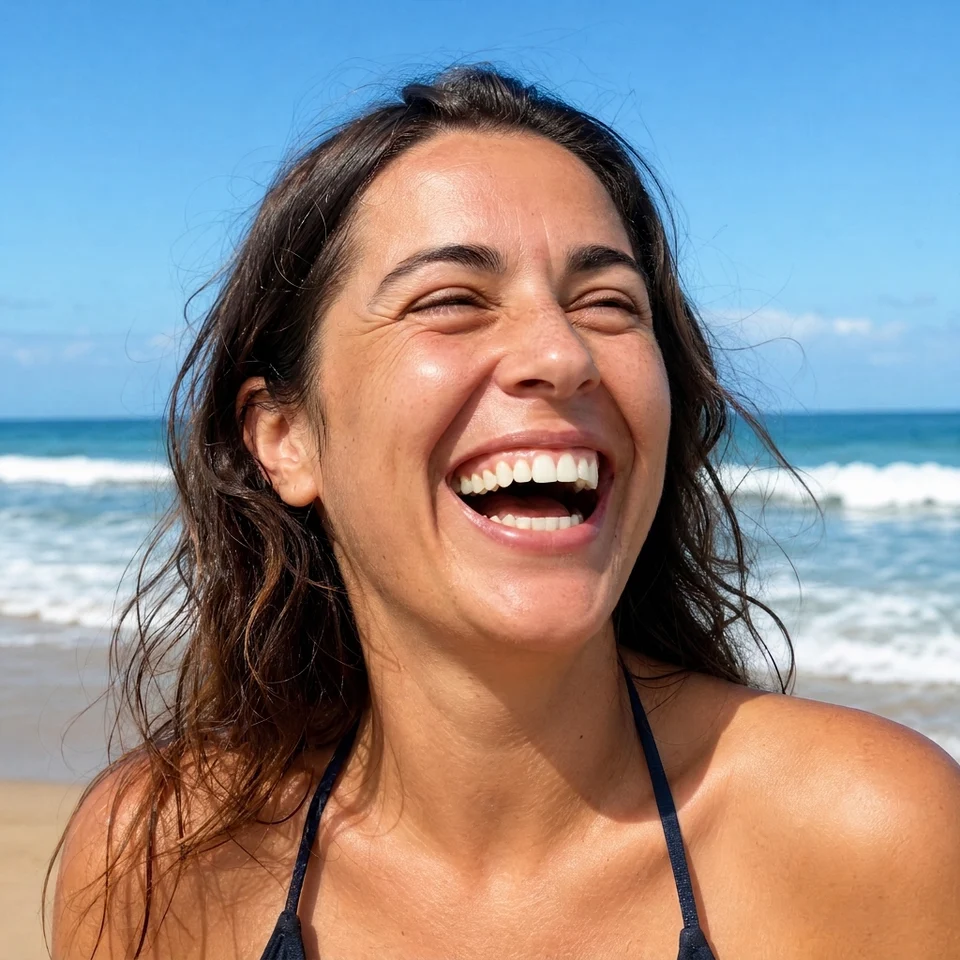
A woman laughing on a bright beach with a natural off-white smile after teeth whitening