









BLACK FRIDAY

2× credits · Ends Dec 1

Ends Dec 1, 11:59 pm PTGrab 2× credits
Teeth Whitening

Upload one photo where the teeth are visible. The teeth whitening photo editor is set to brighten only the teeth and leave the rest of the photo alone.

Teeth Whitening
Upload Your Photo

JPG, PNG or WebP · up to 20 MB · max 6000 px per side

Note
0/200
Public Visibility
Required credits
6
Examples
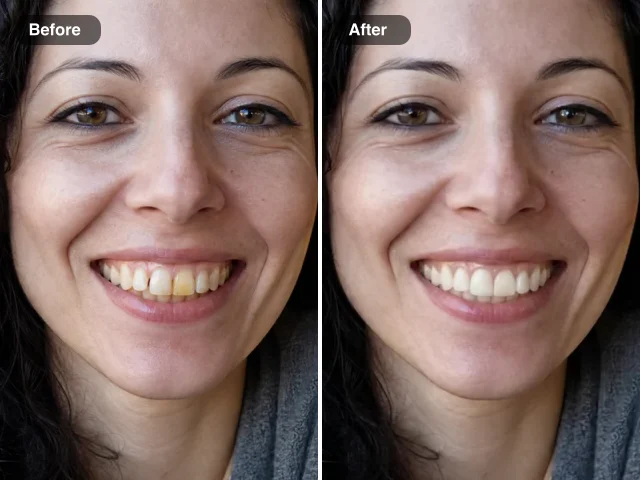
Close-up of a smiling woman before and after teeth whitening: stained yellow teeth left, white teeth right

More Fixes for the Same Kind of Photo

Other tools in this category, for the next problem in the same picture.

Teeth Whitening Photo Editor for a Natural Off-White Smile

The same photo you love, now with a cleaner, natural off-white smile.

Upload one photo where the smile shows: a selfie, a headshot, a wedding portrait or a family snapshot. The AI finds the visible teeth and lifts yellowing, coffee and tea stains to a clean off-white with a touch of warmth, while each tooth keeps its shape and the edit is set to leave the gums, lips, face and background as they are. Add a short note when a crown, braces or a small gap should stay as it is, compare the edit with your original, then download it from the teeth whitening photo editor, ready for a profile, an album page or your next post.

Whiten Teeth in a Photo
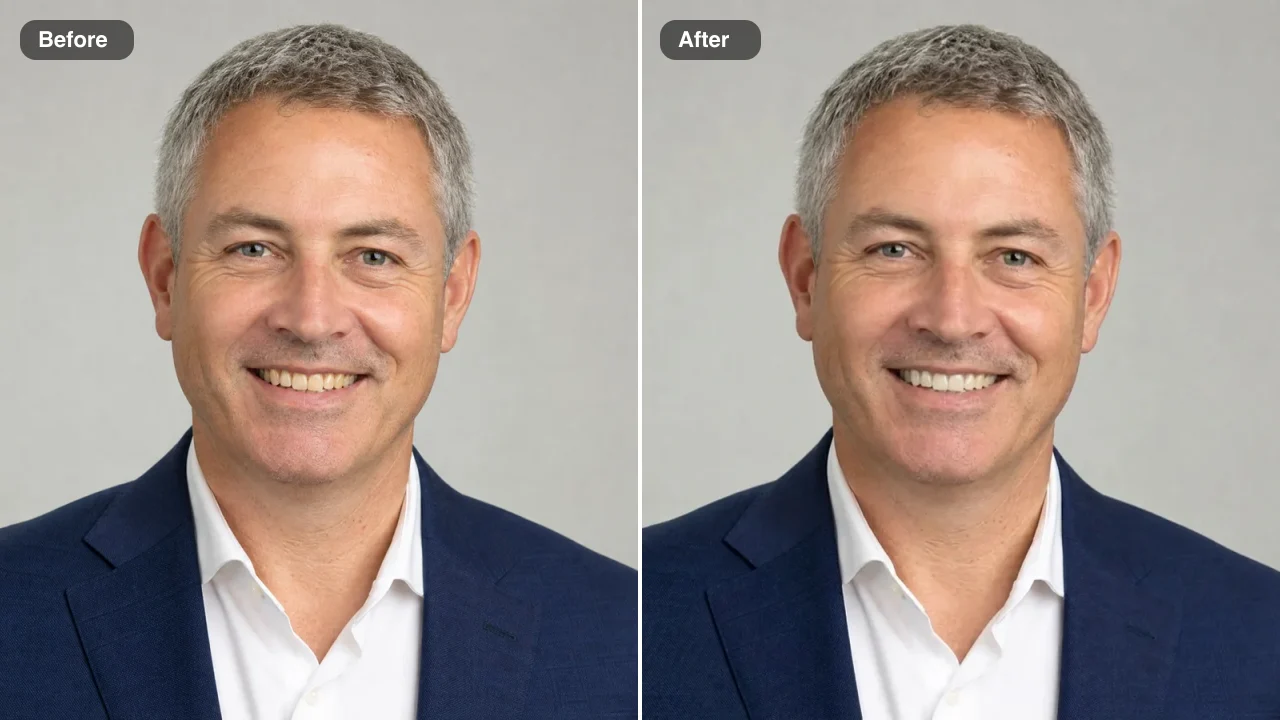
Before and after: a grey-haired man in a navy blazer smiling, yellowish teeth left, naturally whiter right
Yellow Tint Lifted|Coffee Stains Cleared|Tooth Shape Kept|Smiles at Any Age

How to Whiten Teeth in a Photo in Three Steps

The teeth whitening photo editor takes one picture from upload to download in three steps: add the photo, add a note only if you need one, then compare and save.

1

Upload one photo with a visible smile

Drop a JPG, PNG or WebP from your phone or computer into the single upload box, or pick a picture from your Asset Library. Choose a shot where the teeth are in focus and lit from the front, because that gives the teeth whitening photo editor the clearest view of every tooth. The edit keeps your original framing and proportions.

2

Add a note, then press Edit Image

The whitening instructions are built in, so the note box can stay empty. If a detail matters, write it in a few words, such as keep the gold crown or keep the braces visible. Pick Standard or High quality, press Edit Image, and the teeth whitening photo editor runs the edit with those instructions.

3

Check the smile and download it

When the edit is ready, check it against your original photo in the upload box. Look for clean, natural enamel with the same soft shadows between the teeth rather than a flat white. Download the photo or keep it in your Asset Library, or run it again with a note such as keep the shade slightly warm.

Free Photo Tools, No Credits Needed

Repair a broken JPG, straighten a photo, make a scan or add an outline for free, with nothing added to your download.

What Changes in a Teeth Whitening Photo, and What Stays

Each row shows an actual before-and-after from the teeth whitening photo editor: the teeth get brighter, while the face, the light and the background stay as they were.

A Teeth Whitening Photo Editor That Avoids Paper White

In this close studio portrait, the laugh shows strongly yellowed teeth. The teeth whitening photo editor lifts that cast to a clean off-white with a hint of warmth, keeps the translucent edges and the shading between teeth, and leaves the peach backdrop untouched. The smile reads as healthy enamel rather than veneers, which is what makes a whitened selfie or profile shot believable.
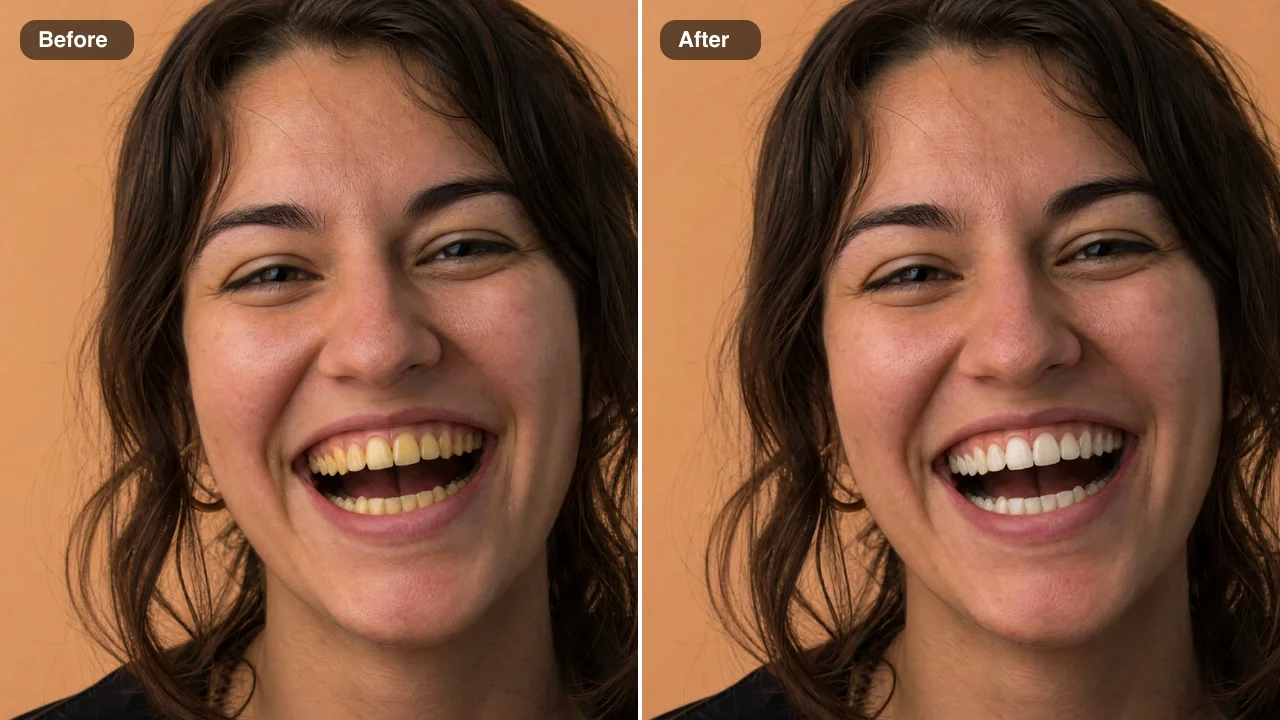
Before and after: a laughing woman’s yellowed teeth brightened to a natural off-white on a peach backdrop

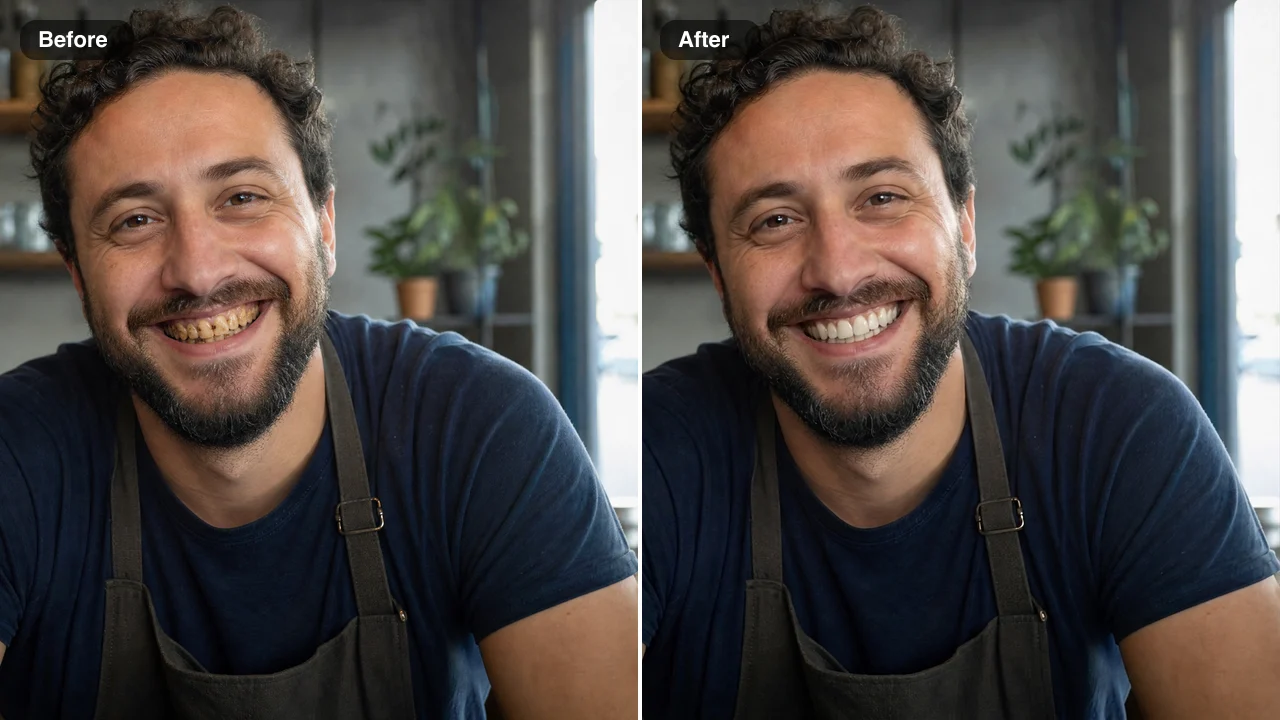
Coffee Stains Lifted in Window Light

A barista smiling behind his counter shows the brown stains that daily espresso leaves. The teeth whitening photo editor clears them while the window light, his beard, the apron and the café behind him stay as photographed. Because the shadows on each tooth follow the original light, the edit blends into the scene, and his staff-page photo still looks like a candid moment.

Before and after: a bearded barista’s coffee-stained teeth whitened; café and window light stay the same

Tooth Shape, Gums and Lips Stay Yours

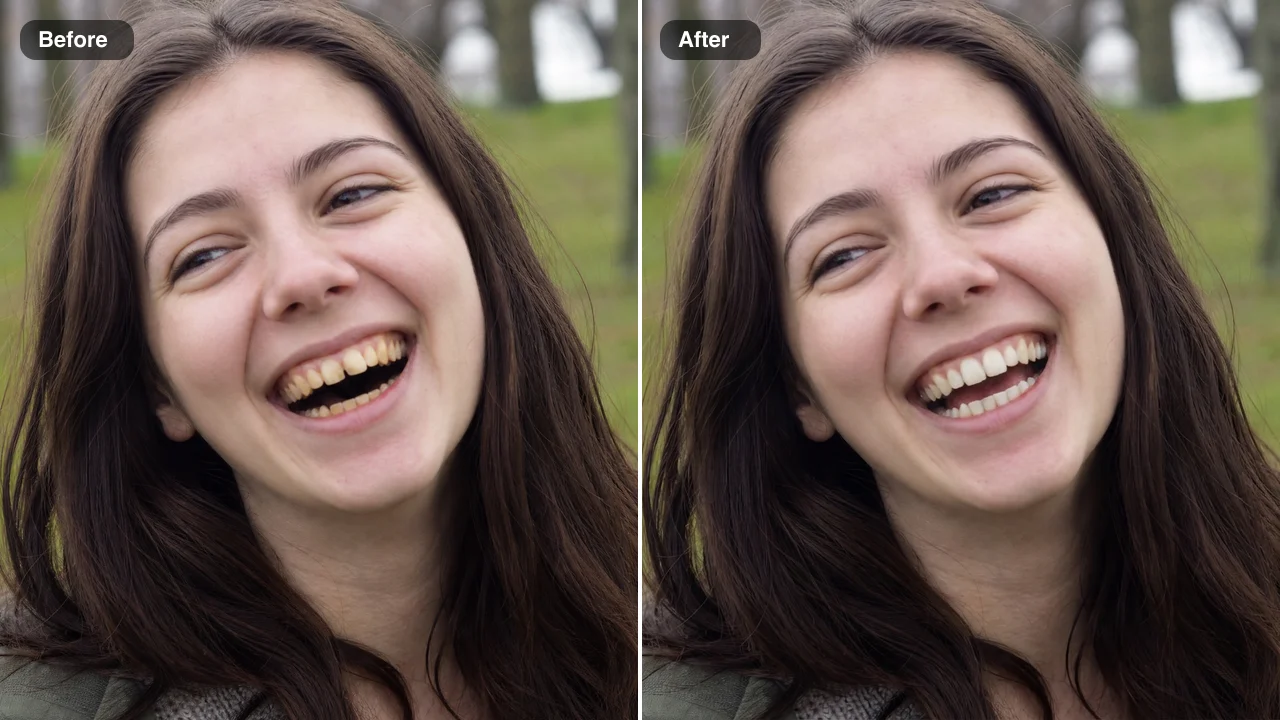
A big laugh in this overcast park portrait shows dull yellow teeth from edge to edge. After the teeth whitening photo editor runs, each tooth keeps its size, shape, spacing and position, and the gums and lips look the same; only the yellow is gone. People who know you recognise the same smile in a dating profile, a graduation shot or a holiday photo.

Before and after: a woman laughing in an overcast park, yellow teeth brightened, tooth shape and gums kept

Whiten Teeth in a Photo at Any Age

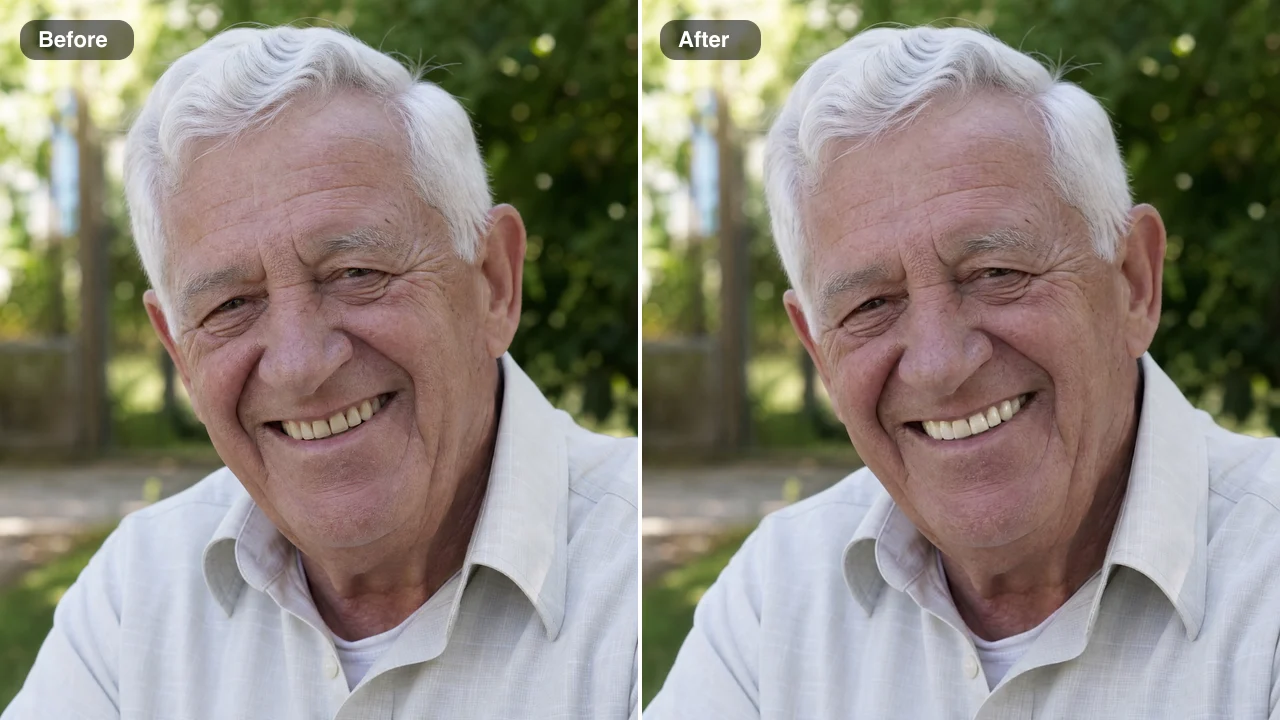
Teeth yellow naturally over the years, and family photos show it. Here a grandfather’s smile in a sunny garden gets a gentle lift, while his silver hair, laugh lines and skin texture keep their natural look. The teeth whitening photo editor aims for a shade that fits the face, so a birthday portrait or an anniversary post still looks like him on a good day.

Before and after: a silver-haired grandfather smiling in a sunny garden, yellowed teeth brightened naturally

Who Uses a Teeth Whitening Photo Editor, and Where

People bring a teeth whitening photo editor the pictures that matter and were taken only once, where yellow teeth are the one thing left to fix.

Job Seekers Updating a LinkedIn Headshot

A job seeker with one good headshot can run it through the teeth whitening photo editor before uploading it to LinkedIn or a résumé site. The coffee tint fades, while the suit, lighting and expression stay as they were, so the picture still matches the person recruiters meet on a video interview.

Couples Finishing a Wedding Album

Before the online album goes out, a couple or their photographer can whiten teeth in a photo that warm evening light made look yellow. Only the smiles change, so the dress, the flowers and the skin tones stay true to the day, and the favourite frame can finally open the album or the slideshow.

Creators Posting Close-Up Selfies

Warm lamps and ring lights can make teeth look duller on camera than in person. A creator can fix a selfie in the teeth whitening photo editor before posting to Instagram or TikTok, keeping the same pose, makeup and background, so followers see a bright smile that still looks real.

Families Sharing Reunion and Graduation Photos

At reunions and graduations, the best group shot usually happens once. A parent can open that photo in the teeth whitening photo editor, brighten every visible smile in the same edit, and share the result in the family chat or a digital album, with gowns, faces and the venue unchanged.

What People Say About the Teeth Whitening Photo Editor

Golden-hour light is lovely on skin and cruel on teeth. For a September wedding I picked the twelve portraits the couple wanted in their online album and ran each one through the teeth whitening photo editor. The bride’s red lipstick and the groom’s small chipped tooth stayed exactly as they were, and only the yellow cast left the smiles.

Marisa Okonkwo
Wedding Photographer

Teeth Whitening Photo Editor FAQ

Straight answers about the teeth whitening photo editor: what it costs, which photos work, what stays the same and how to keep every smile looking natural.

A teeth whitening photo editor is a tool that brightens yellow or stained teeth in a photo you already have. On FixImage you upload one picture, and the visible teeth turn a natural off-white while the face, lips and background stay the same.

Yes — FixImage gives you free credits to start. Create an account to collect them, then come back for the daily check-in, where a streak raises the reward up to 3x by day 7. A Standard edit in the teeth whitening photo editor uses 6 credits and High quality, available with a subscription or any credit pack, uses 16, and the rest of your balance works on every other AI photo fix here.

A sharp photo where the teeth are clearly visible works best in the teeth whitening photo editor. Front light and a smile in focus give the cleanest shade, and close-ups, headshots and group shots all work as long as each smile shows. Upload a JPG, PNG or WebP file.

You only upload the picture and press Edit Image; the whitening instructions are already built in. Standard runs on Nano Banana 2 Lite; High quality runs on Nano Banana Pro and tends to keep more of your natural skin texture. The optional note box takes up to 200 characters for details such as keep the gold crown or keep my braces.

The teeth whitening photo editor is built to recolour only the visible teeth, so your face keeps its natural look. Its instructions tell the AI to leave tooth shape, spacing, gums, lips, skin, hair, expression and background as they are, and you can check the result against your original photo before you download.

Yes — every visible smile in a group photo is brightened in the same edit. Braces and crowns stay as they are; add a short note such as keep the braces visible if you want to be sure. A photo where each face is in focus gives every smile the same clean result.

You choose who sees your teeth whitening photo with the Public Visibility switch above the Edit Image button. Edits on the free plan are public by default, and a subscription or one-time pack lets you switch it off so every edit stays private. Either way, your photo is used only to create your edit.

Aim for a natural off-white rather than pure white, which is the shade the teeth whitening photo editor targets. It changes only the colour of the teeth, so their shape and the shadows between them stay. If you fix teeth in a photo and the shade still looks too bright, run it again with a note such as keep the shade slightly warm. A clear, front-lit photo gives the most even result to check against your original.

Brighten Your Smile with the Teeth Whitening Photo Editor

Upload one photo with a visible smile, let the teeth whitening photo editor lift yellow and coffee stains to a natural off-white, and compare the result with your original before you download it for a profile, an album or a post. Start with the smile you like best.

Whiten Teeth in My Photo
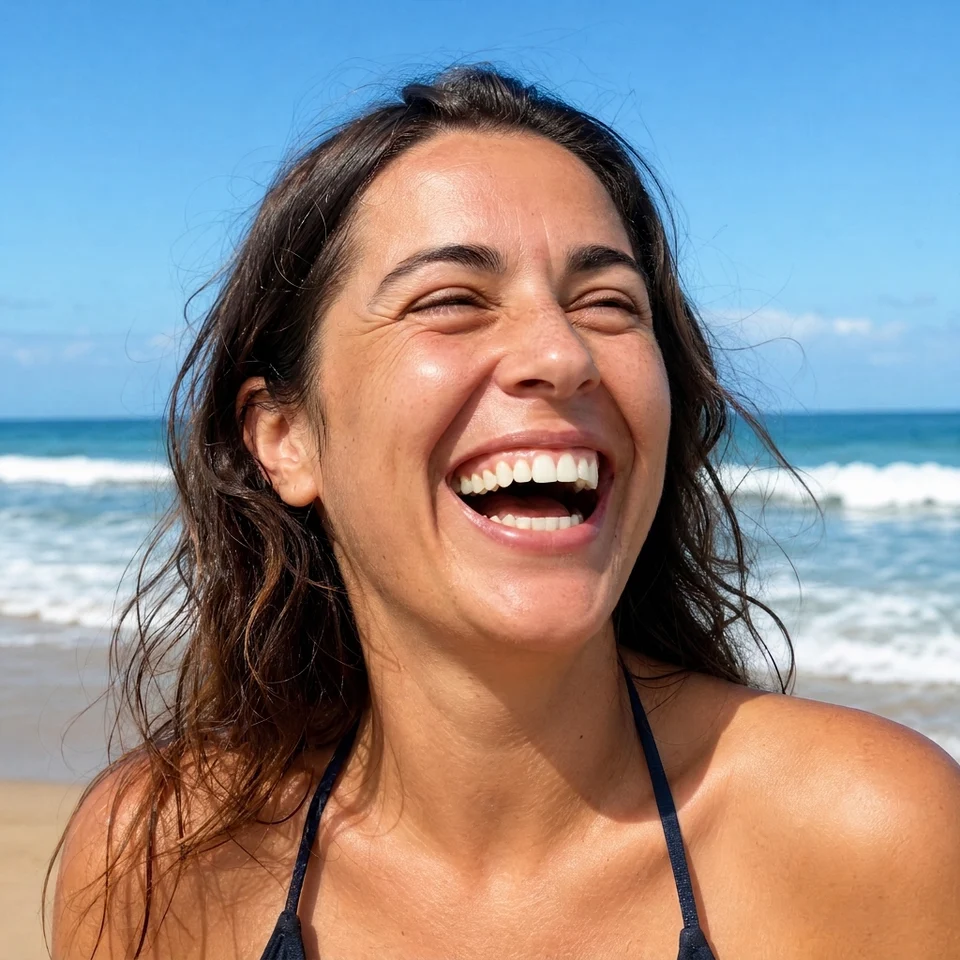
A woman laughing on a bright beach with a natural off-white smile after teeth whitening