

BLACK FRIDAY

2× credits · Ends Dec 1

Ends Dec 1, 11:59 pm PTGrab 2× credits
Screenshot Editor

Upload one screenshot and quote the words to change along with what they should say. When you edit text in a screenshot here, only that text is rewritten, and the buttons, icons and spacing stay as captured.

Screenshot Editor
Upload Your Screenshot

JPG, PNG or WebP · up to 20 MB · max 6000 px per side

Note
0/200
Public Visibility
Required credits
6
Examples
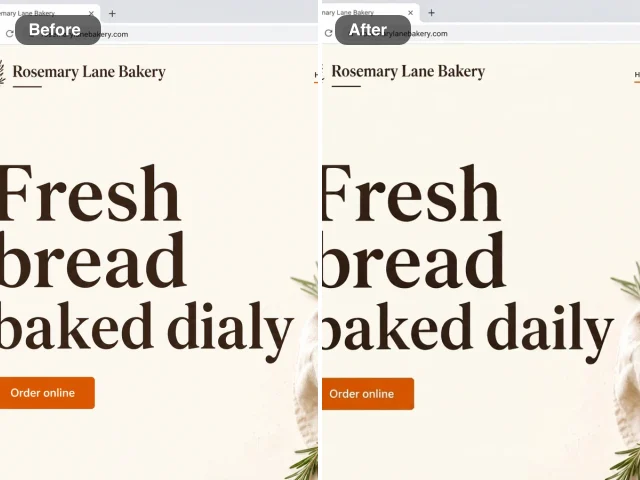
Bakery website headline before and after a typo fix: baked dialy on the left, baked daily in the same serif on the right

More Fixes for the Same Kind of Photo

Other tools in this category, for the next problem in the same picture.

Edit Text in Screenshot Images and Match the Interface Font

Fix the typo, keep the interface: one screenshot of your own app or site, one corrected line.

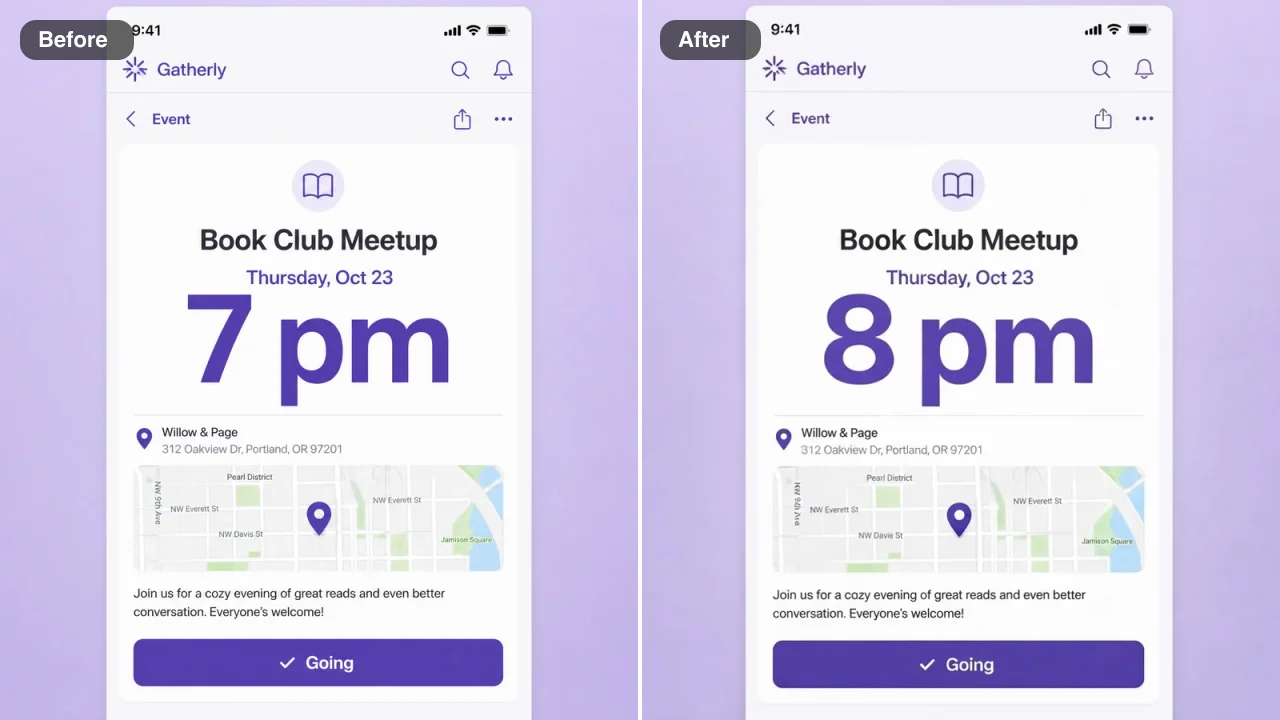
Upload a screenshot of your own app, website, slide or demo chat: a product page with a typo, an event card with the wrong time, a settings screen with an old label. Type the words to change and the new wording, such as change Sael to Sale, and the AI rewrites only that text in the same font, weight, size, color and anti-aliasing, inside the same button or bubble. Icons, layout and the surrounding text stay where they were. You can edit text in screenshot images this way, check the new line against the original and download a clean result for docs, tutorials or a demo.

Edit Text in My Screenshot
Before and after: an events app card for a book club meetup showing 7 pm on the left and 8 pm on the right
Typos Fixed in Headlines|Dark Mode Labels Matched|Chat Bubbles Kept in Shape|Slide Titles Updated

How to Edit Text in a Screenshot in Three Steps

To edit text in screenshot images, you upload the capture, name the words to replace and their new wording, then check the result and save it.

1

Upload the screenshot as captured

Add the PNG, JPG or WebP straight from your phone or computer, or choose one from your Asset Library. An uncropped, full-resolution capture keeps the interface text crisp, which helps you edit text in a screenshot with lettering that matches the system font around it.

2

Name the old and new wording, then press Edit Image

Quote the exact words to replace and their new version in the note, for example change Weekly summary to Daily summary, and keep it to one phrase per edit. Press Edit Image, and the built-in instructions fit the new words into the same button, label or bubble.

3

Compare the screenshot and download it

Check the result against the original: spacing, line height and anti-aliasing should look the same as the untouched text. Download the image or keep it in your Asset Library for your docs. For a second phrase, edit text in a screenshot again using the downloaded copy.

Free Photo Tools, No Credits Needed

Repair a broken JPG, straighten a photo, make a scan or add an outline for free, with nothing added to your download.

Edit Text on Screenshot Images Without Moving the Layout

Four captures, from a shop site to a demo chat, show what happens when you edit text on screenshot images here: the quoted words change, and the layout stays as captured.

Edit Text in Screenshot Headlines in Their Display Font

This sandal shop banner went live with Summer Sael in huge white letters. The note asked for Sale, and the new word came back in the same display typeface, size and spacing, centred on the coral banner with the product photos untouched. Marketers edit text in a screenshot like this to share a corrected preview with a client before the live site is updated.
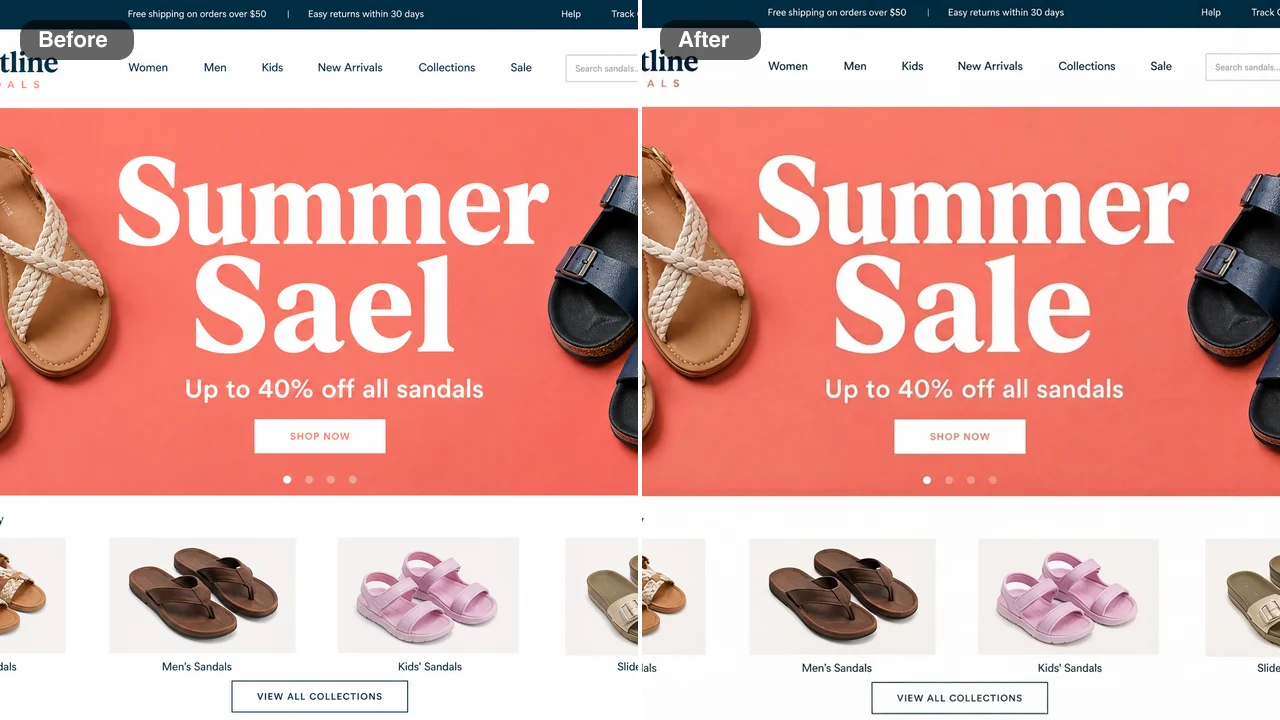
Before and after: a coral website banner reading Summer Sael on the left and Summer Sale on the right in the same white type

Dark Mode Labels That Match the System Font

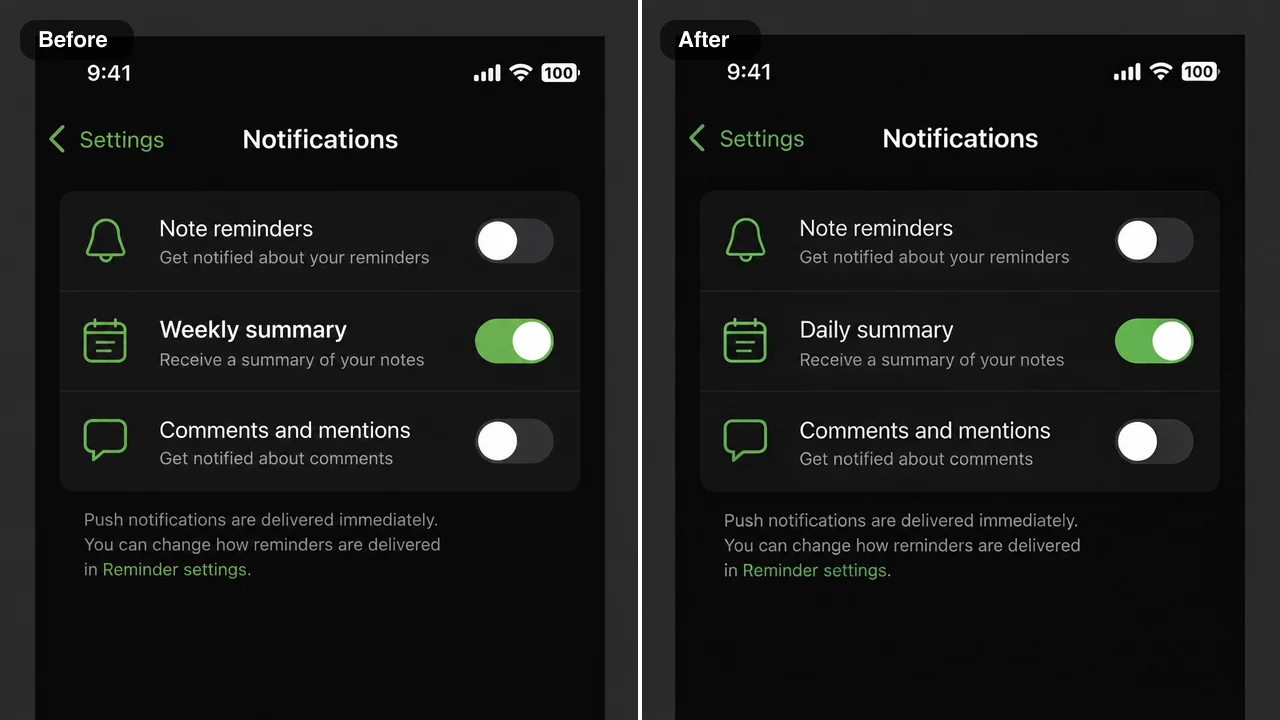
Dark interfaces show every halo and uneven edge. In this notifications screen, Weekly summary became Daily summary in the same white system font, aligned with its toggle, while the other rows and the green switch stayed as captured. Product teams edit text in a screenshot to show a planned label change in a spec or a release note.

Before and after: a dark mode notifications screen with the row Weekly summary on the left and Daily summary on the right

Chat Bubbles Keep Their Shape and Spacing

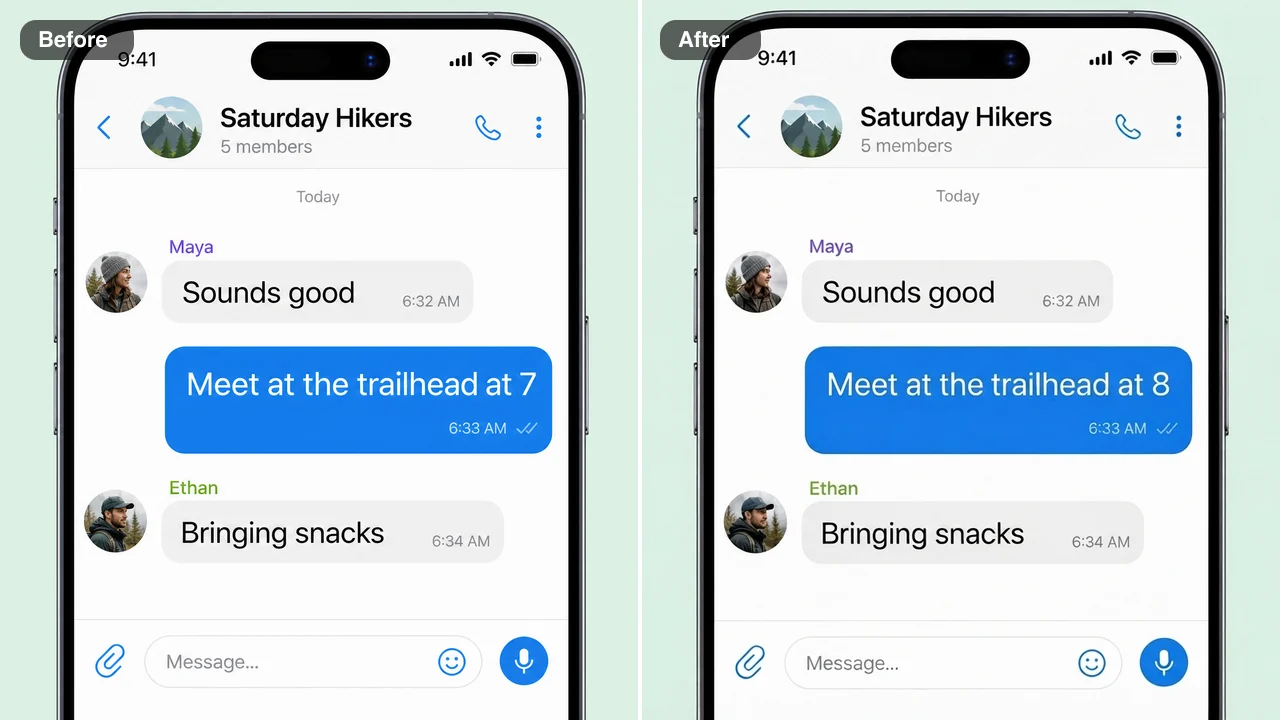
For a tutorial built on a demo hiking club chat, the meeting message needed to say at 8 instead of at 7. Only that digit changed; the blue bubble kept its size and rounded corners, and the messages above and below stayed in place. Support writers edit text in a screenshot of their own demo chats this way so a help article matches the story it tells.

Before and after: a demo group chat bubble reading Meet at the trailhead at 7 on the left and at 8 on the right

A Screenshot Editor for Presentation Titles

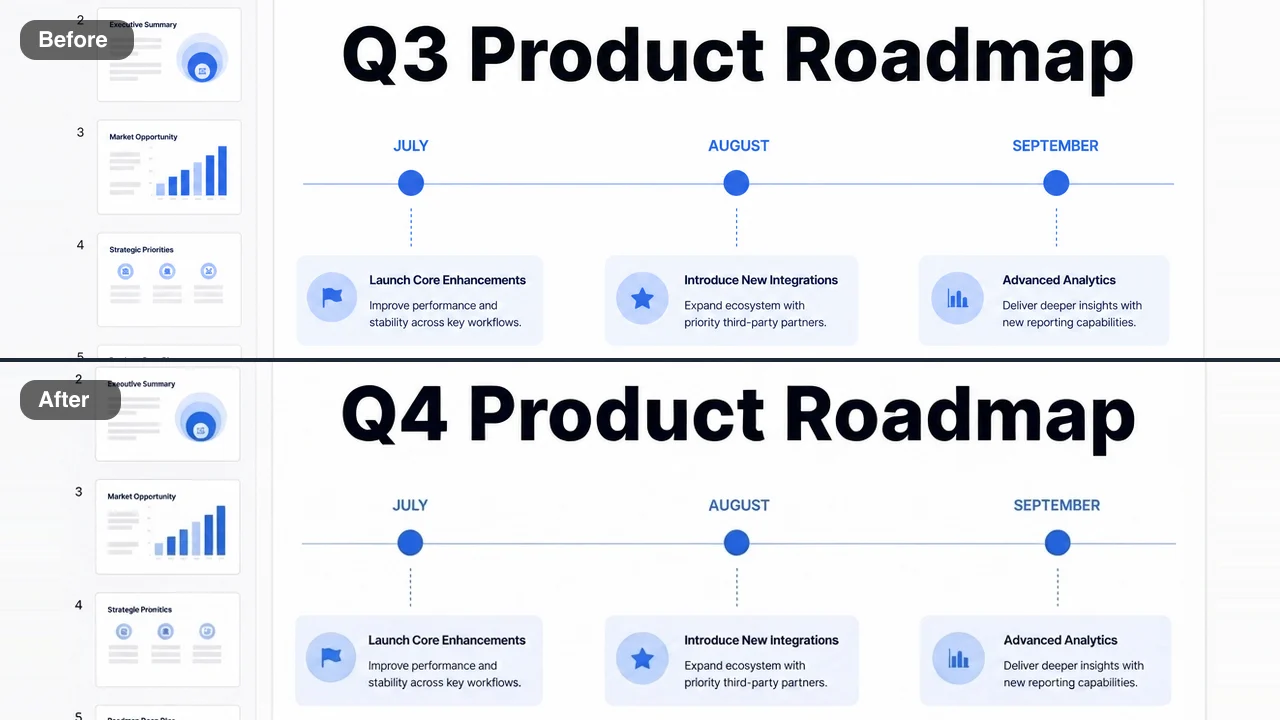
This presentation app capture showed a Q3 roadmap slide that the team reused for the next quarter. The note changed Q3 to Q4 in the large bold title, and the month timeline, the milestone cards and the soft blue palette stayed as they were. Teams edit text in a screenshot for internal wikis and onboarding guides when one title is all that changed.

Before and after: a presentation app slide titled Q3 Product Roadmap on top and Q4 Product Roadmap below

Who Uses a Screenshot Editor to Change Text

These people need a clean, accurate image of an interface, and they edit text in a screenshot when only one line is wrong or out of date.

Technical Writers Keeping Help Docs Current

When a button is renamed, every screenshot in the help center goes stale. A technical writer can edit text in a screenshot to match the new label, keep the arrows and callouts from the original guide and publish the corrected article without recapturing screens from a staging account.

Product Designers Presenting Copy Changes

Designers often need to show a stakeholder how new wording will look in the live interface. They edit text in a screenshot of the current screen, swap in the proposed microcopy and show the current and proposed wording together in a review deck, with the real layout intact.

Marketers and Founders Fixing Launch Images

A typo in a launch graphic or an app store screenshot is easy to miss until it is posted. Marketers change text in screenshot assets from the posted file, keep the device frame and brand colors as they are, and replace the image before more people see it.

Teachers and Trainers Building Tutorials

A trainer recording a walkthrough wants every screenshot to show the same example names, times and values. They edit text in a screenshot to line up demo data across slides, so learners follow one consistent story from the first step to the last.

Teams That Edit Text in a Screenshot for Docs and Demos

Our product renamed the Export button to Share, and forty help articles suddenly showed the wrong label. Some of those screenshots came from a staging setup we no longer have, so for those I could only edit text in a screenshot rather than recapture. The new word sat inside the same rounded button in the same font, and my callout arrows still pointed at it.

Noor Haddad
Technical Writer

Edit Text in Screenshot FAQ

Answers about how to edit text in a screenshot: what it costs, which captures work best, how font matching works and which screenshots the tool declines.

The edit text in screenshot online tool is an AI photo editor that rewrites words already captured in an image. Typical cases are a typo in a heading or an outdated button label: you upload the capture, quote the old and new wording, and just that text is redrawn to match the interface around it.

Yes — signing up to FixImage adds free credits to your account. Checking in each day adds more, with a streak lifting the reward up to 3x by day 7, and each change uses 6 credits, so you can edit text in a screenshot today and spend what is left on other AI photo fixes.

Yes — iPhone, Android and desktop captures all work, uploaded as PNG, JPG or WebP. Full-resolution, uncropped captures with text at least the size of body copy give a crisp result. Labels, headings, times and dates on app screens, web pages, slides and demo chats can all be changed, and the image keeps its original framing.

Quote the words to change and the replacement in the note, which takes up to 200 characters, then press Edit Image. Font matching is part of the built-in instructions: the edit runs on Nano Banana 2 Lite and copies the size, weight, color, spacing and anti-aliasing of the surrounding text, so you edit text in a screenshot without identifying the font yourself.

Everything outside the quoted words keeps its place: icons, avatars, buttons, images, colors and every other line. When you change text in a screenshot, the new wording is fitted inside the same element, so the page keeps its flow and the capture still looks like the screen you took.

The edit text in screenshot tool is made for captures of your own apps, websites, slides and demo chats. Screenshots of banking or payment apps, payment confirmations, and images of identity documents, bank statements, receipts or invoice amounts, and medical, legal or government papers are declined automatically before the edit begins, and the Terms of Service also do not allow presenting an edited image as evidence, proof of payment or grounds for a claim.

You choose who sees it with the Public Visibility switch above the Edit Image button. Free-plan edits are public by default, and a subscription or one-time pack lets you keep every edited screenshot private. The capture you upload is used only to make your requested change.

When you edit text in a screenshot to fix a typo, quote the misspelled word and its correct spelling in the note. Copy the word exactly as it appears, use the original uncropped capture, change one phrase per edit, keep the replacement close in length, and check the result against the original before you share it.

Edit Text in a Screenshot of Your Own App

Upload an app, website or slide capture, quote the words to change, and edit text in a screenshot in the same font, size and color. Check the new line against the original and download a clean image for your docs. Open the capture with the typo and correct it.

Fix My Screenshot Text
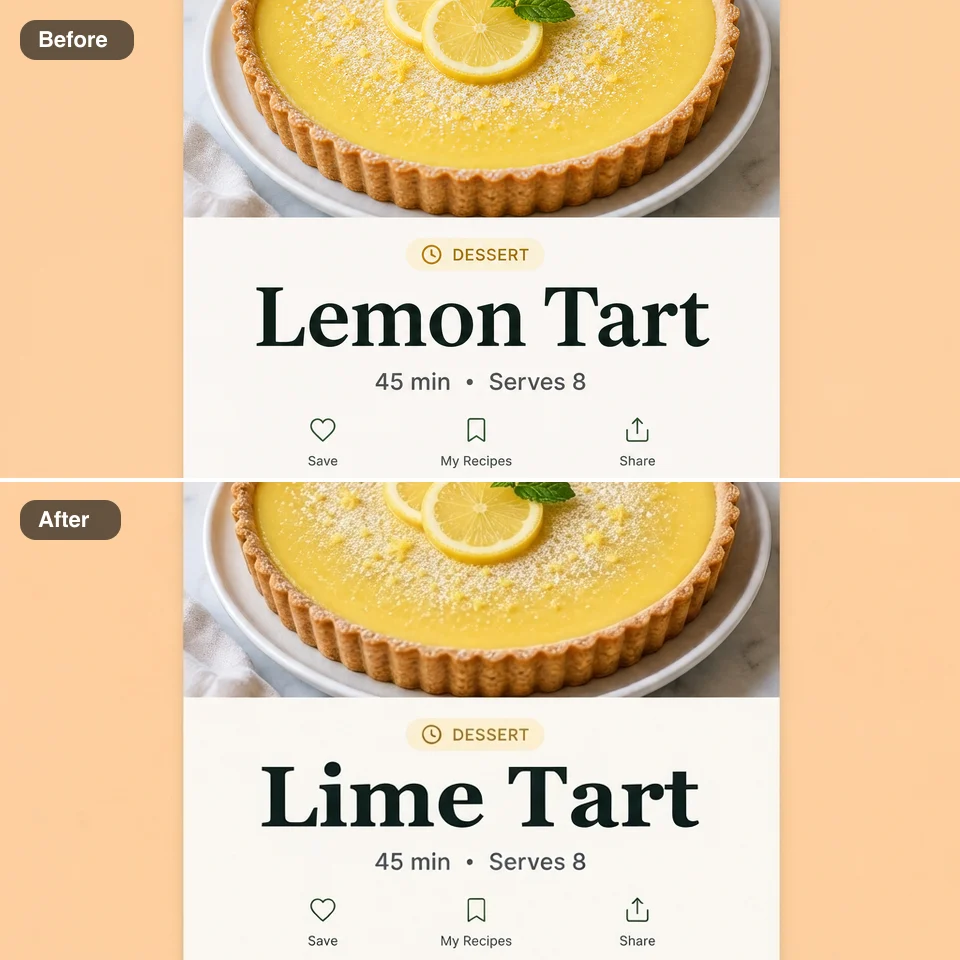
A recipe app screen shown twice, the title Lemon Tart on top and Lime Tart below in the same bold type