




BLACK FRIDAY

2× credits · Ends Dec 1

Ends Dec 1, 11:59 pm PTGrab 2× credits
Brighten Photo

Adjust brightness and contrast, then compare with the original.

JPG, PNG or WEBP · up to 20 MB

0%
0%

Free online tool · no sign up

No limit on downloads.

Live preview
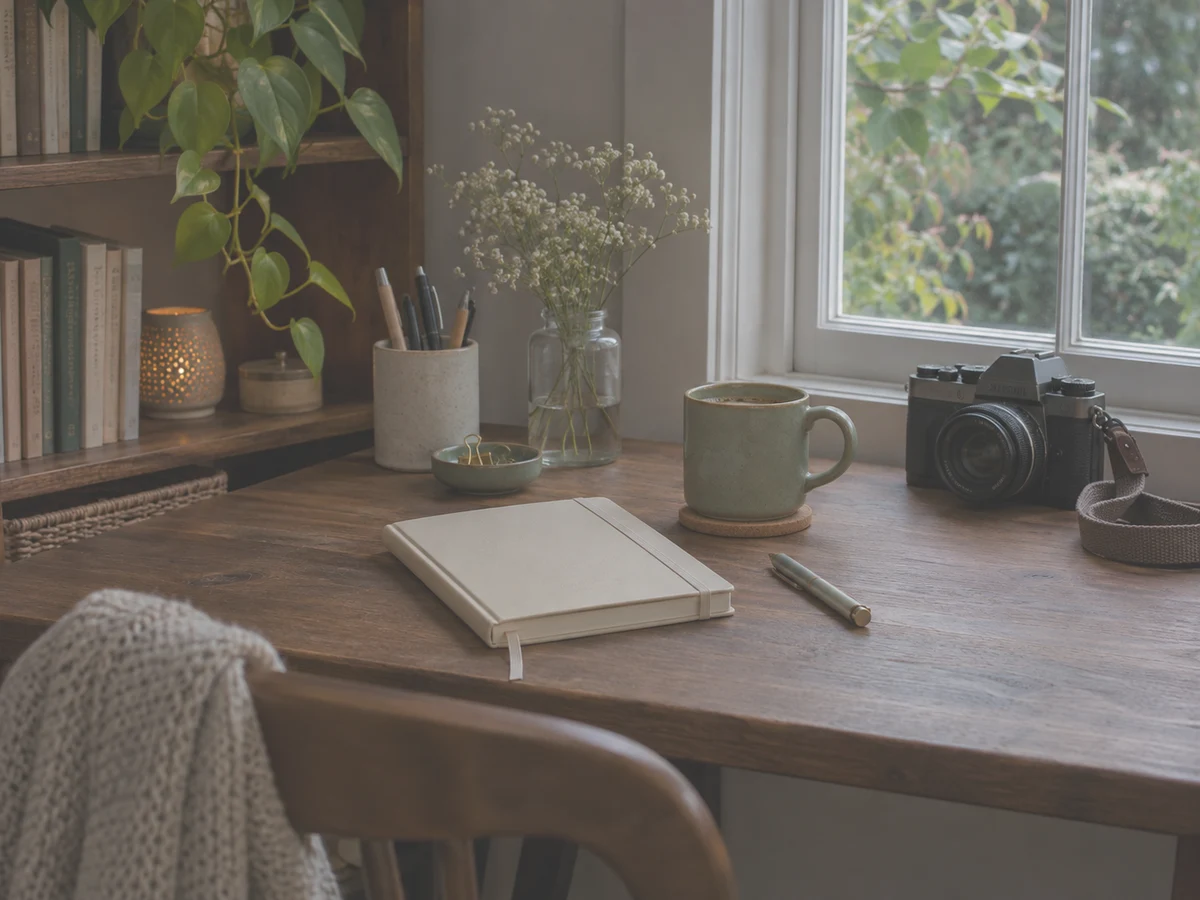
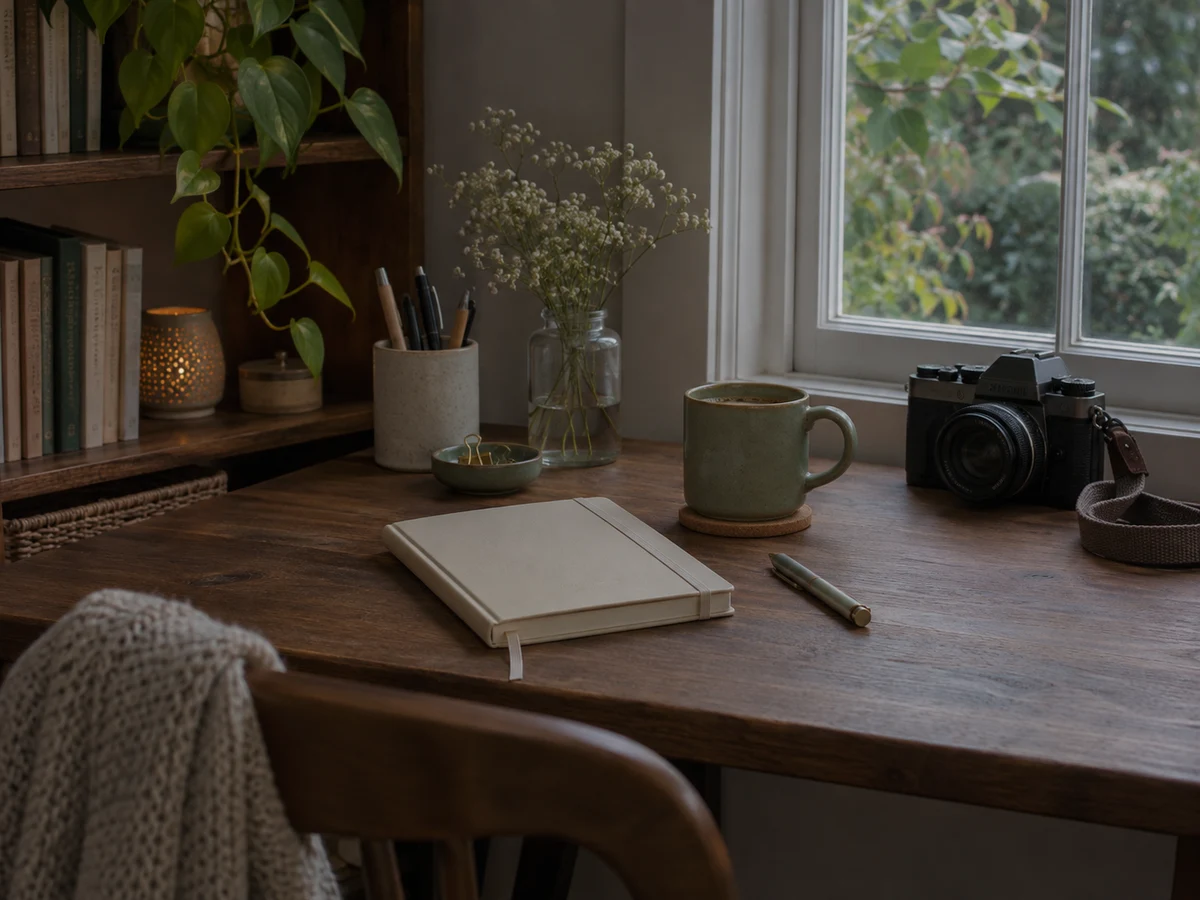
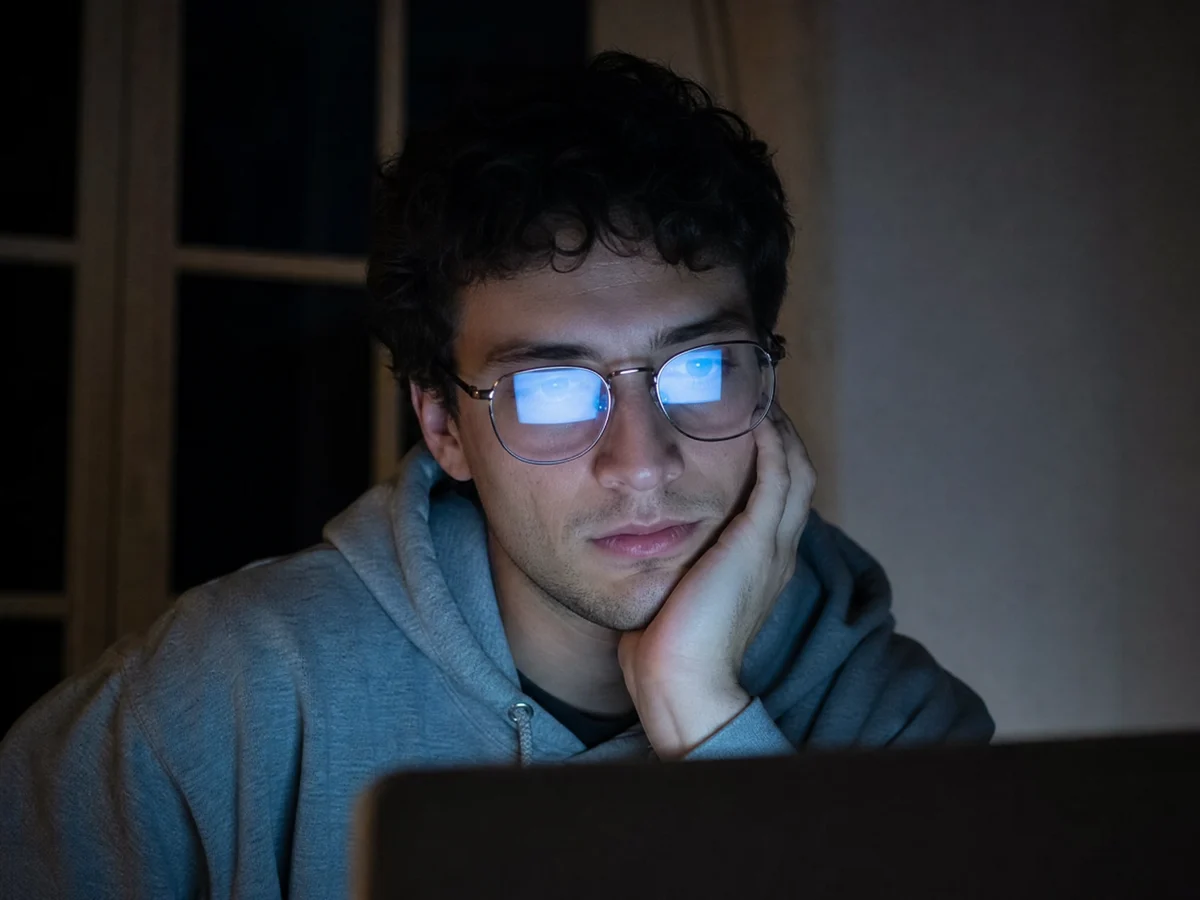
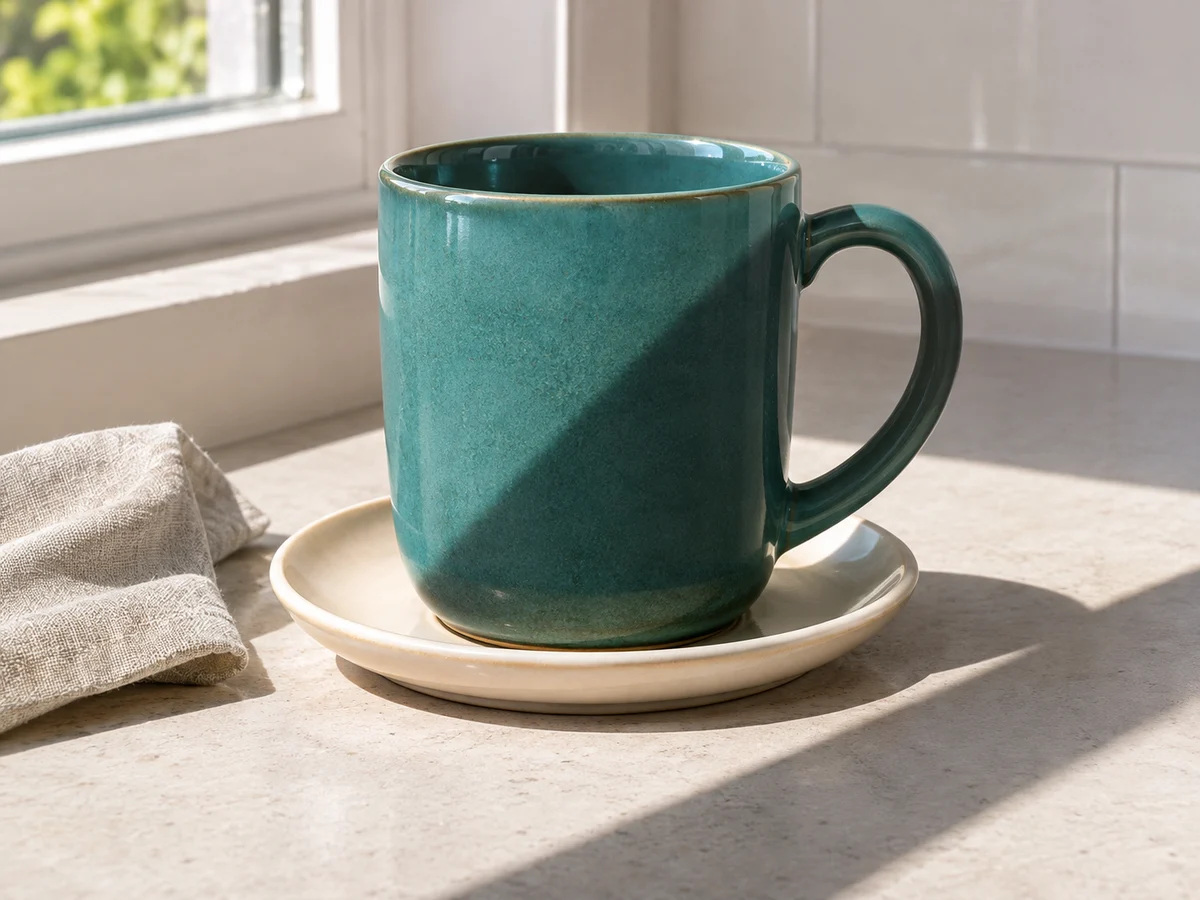
Window desk: brightness +24%, contrast 18%
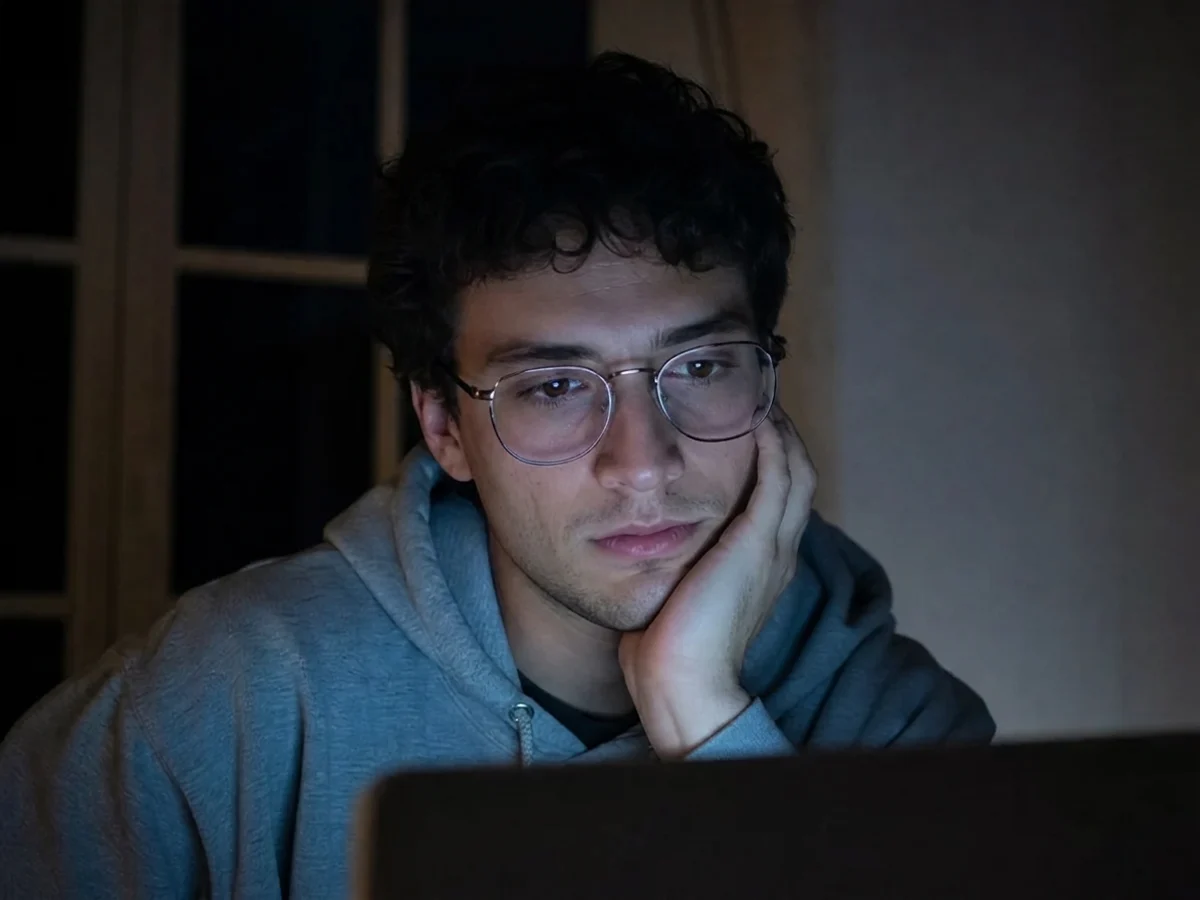
Window desk: original
BeforeAfter

More Fixes for the Same Kind of Photo

Other tools in this category, for the next problem in the same picture.

Brighten Photos Online for Free with Brightness and Contrast

Brightness and contrast sliders

Use Brighten Photo to open up a dim portrait, indoor snapshot, or product image where the details are already visible. Raise Brightness in small steps, then tune Contrast to keep the difference between light and dark areas. The comparison shows you when the photo looks right for its use. Download a PNG at the same pixel dimensions as the original.

Brighten My Photo
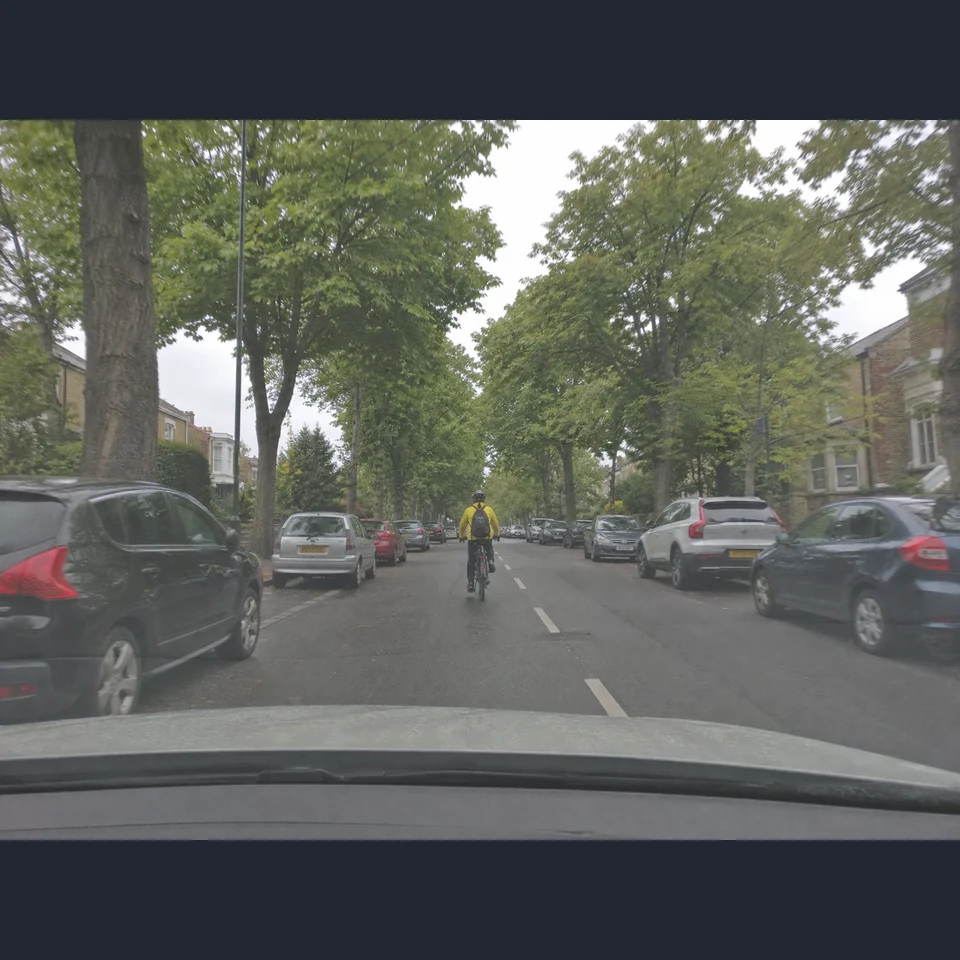
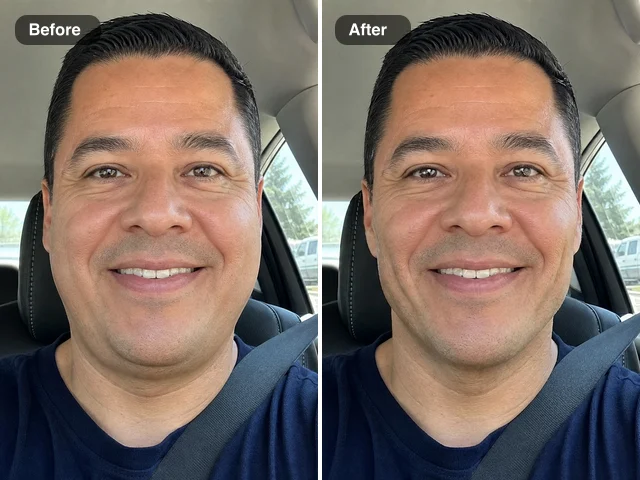
Car selfie: brightness +18%
PNG download|Live preview|No Sign Up

How to Use Brighten Photo Online

Brighten Photo gives you a separate slider for brightness and contrast. Work from a small adjustment and compare the result before you download, especially if the original already has some bright areas.

1

Open a dim photo

Open a JPG, PNG, or WebP from your device in Brighten Photo. Pick an image where you can still see the subject and texture in the shadows. An existing detail gives you something to track as you lift the image.

2

Set brightness and contrast

In Brighten Photo, start with a small change to Brightness. Check the brighter areas, then adjust Contrast to bring back separation if the image starts to look flat. Move the comparison divider over the part of the picture you care about most.

3

Save the adjusted PNG

Check the preview in a bright area and a dark area before selecting Download PNG. If the result is too strong, use Reset to return both sliders to zero and build up your adjustment again from the original.

AI Fixes for Harder Photo Problems

When a picture needs whiter teeth, a slimmer face, no glare or a corrected number, these AI photo fixers make the edit for you.

Image Brightener Controls for Dark Photos

The image brightener gives you direct control over the overall light and contrast. Use it to lift the overall light in a dark photo. Check the shadows and highlights together as you adjust both sliders.

Lift the overall brightness

Move the Brightness slider in Brighten Photo to make a dim picture easier to read. Start low when a photo already has bright parts such as a window, a white shirt, or a screen. A smaller adjustment can lift a dark subject while leaving enough separation to keep the picture interesting.


Street portrait: brightness +20%

Set the contrast separately

Brightness and Contrast are separate sliders in Brighten Photo. Contrast changes the distance between light and dark tones. Raise it a little when the image begins to look flat, or lower it if the darkest regions become too heavy. Keep comparing with the original so the result still suits the light and mood of the scene.

Cafe portrait: brightness +26%, contrast 18%

Compare with the starting image

Drag the divider in Brighten Photo over the part of the photo you are editing. Watch an important detail such as a face, a label, or the outline of an object as you make an adjustment. Reset both controls with one button if you need to start over from the original.

Subway portrait: brightness +16%, contrast -14%

Save a PNG at the same dimensions

The download uses the same decoded width and height as your input. Transparent areas remain transparent in the PNG. This keeps a cut-out ready for another layout and lets you adjust the tones of an image before placing it in a slide, album, or product listing.

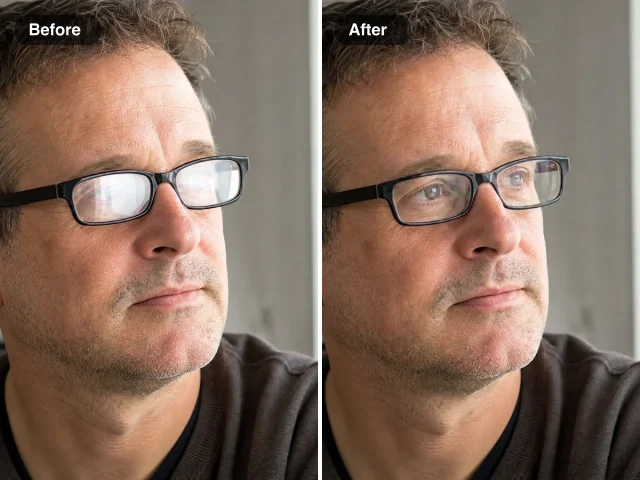
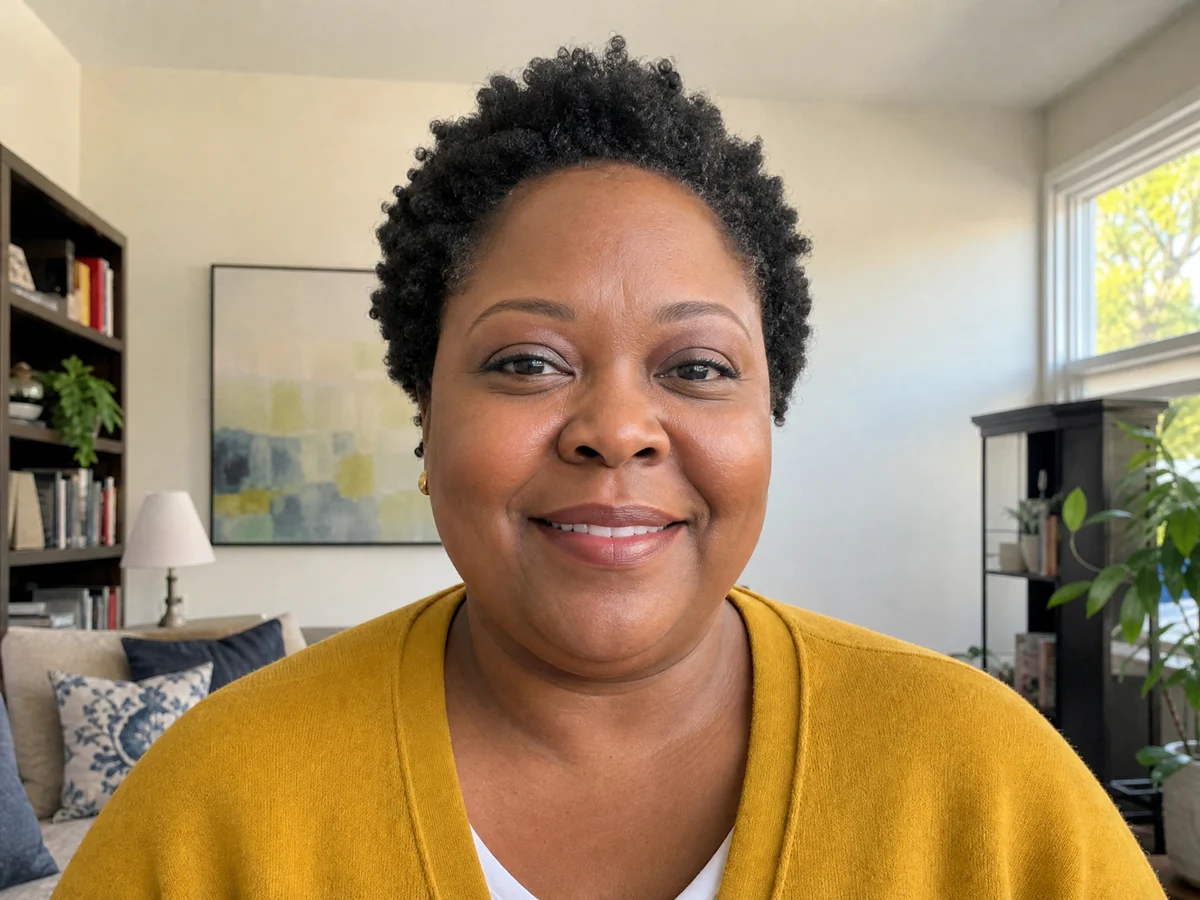
Older portrait: brightness +22%

When to Brighten a Dark Photo

Use Brighten Photo on dim portraits, product shots, travel pictures, and indoor scenes.

Dim desk and indoor scenes

Lift the overall light when an indoor photo comes out too dark. Check the window and the desk surface before saving so the lighter version keeps the feel of the room. In Brighten Photo, compare small adjustments at the window before saving.

Underexposed portraits

Make an existing face easier to see by starting with a small brightness change. Compare the result at the cheeks and hair before using it in a profile or album. Brighten Photo shows the edited and original faces in one preview.

Product photos in soft light

Bring a dim product photo closer to the tone of the rest of a listing. Use contrast to keep the outline readable and review lighter details on the label. Use Brighten Photo to compare two light levels on the same label before exporting.

Travel photos on cloudy days

Lift a dull or dim image for a travel post. Compare the sky and the foreground as you move the sliders, then use the version that best preserves the scene. A side-by-side check helps you decide how much light the post needs.

How People Brighten Photos for Albums and Listings

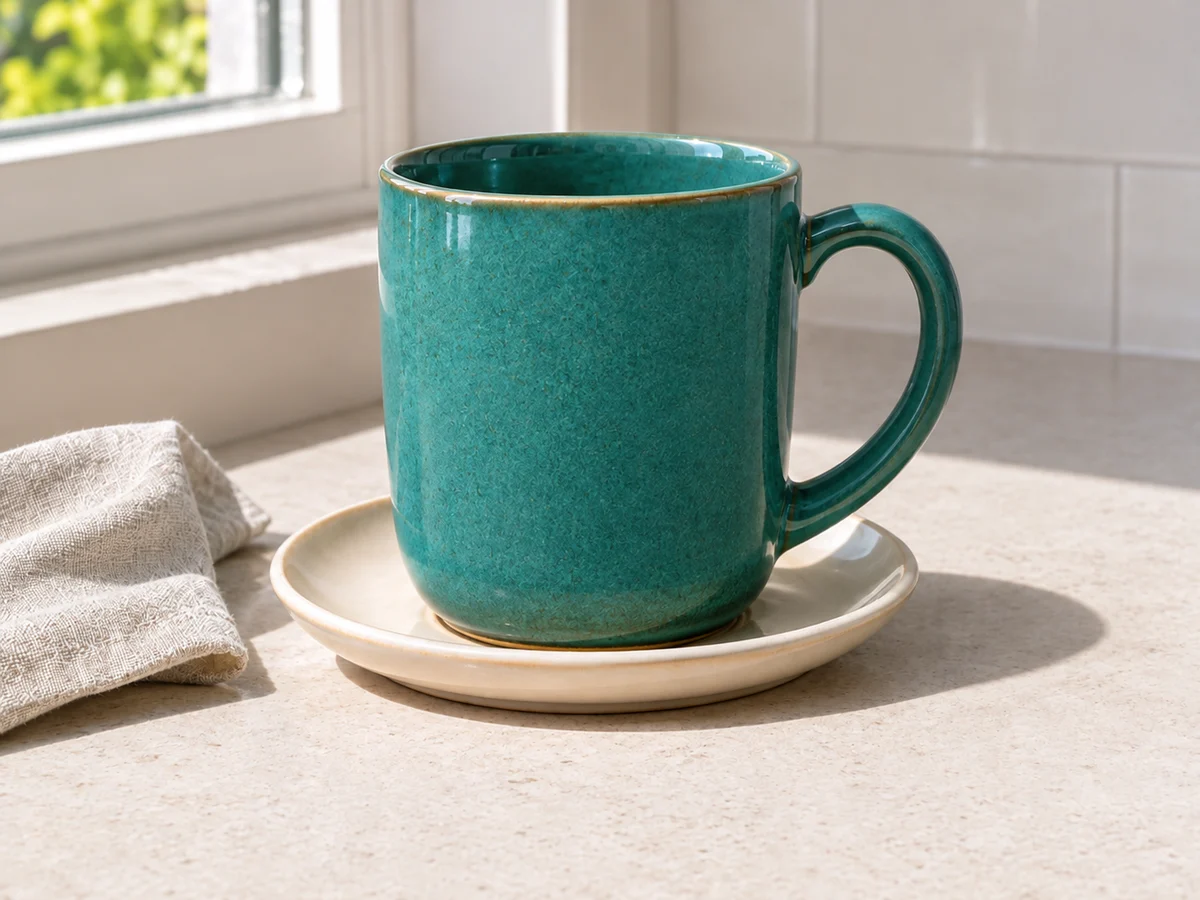
The handle on a ceramic mug looked too dark beside the rest of my listing photos. I used Brighten Photo and moved the brightness slider a little, then checked the rim and handle against the original. The saved PNG fit the collection without making the rim look washed out.

Camila Foster
Product Photographer

Brighten Photo FAQ

Learn how Brighten Photo balances light and contrast, which files you can open, and what the tool downloads.

Raise Brightness in small steps, then adjust Contrast separately. In Brighten Photo, use the original comparison to watch bright highlights and dark details while deciding on the right balance.

The sliders affect the whole photo. Brighten Photo is best for an overall brightness issue. A sharply defined shadow calls for a targeted editing tool.

Start with a modest brightness increase. Add a little contrast if the result looks flat, and compare light and dark areas before downloading.

Select Reset to return Brightness and Contrast to zero. Use the Brighten Photo comparison or make a new adjustment from that starting point.

The PNG from Brighten Photo has the same decoded width and height as your original and keeps its alpha channel where the input has transparency.

Use the Brighten Photo sliders for free on one supported image. You can download the resulting PNG without creating an account.

Brighten Photo Online and Save a PNG

Open a dark photo and use Brighten Photo to raise the light a little at a time. Compare the preview with the original, then download your adjusted image as a PNG at the same dimensions.

Brighten My Photo
Travel frame: brightness +18%