





BLACK FRIDAY

2× credits · Ends Dec 1

Ends Dec 1, 11:59 pm PTGrab 2× credits
Image Aspect Ratio Changer

Crop the center or keep the full image with clear space around it.

JPG, PNG or WEBP · up to 20 MB

Framing

Free online tool · no sign up

No limit on downloads.

Live preview
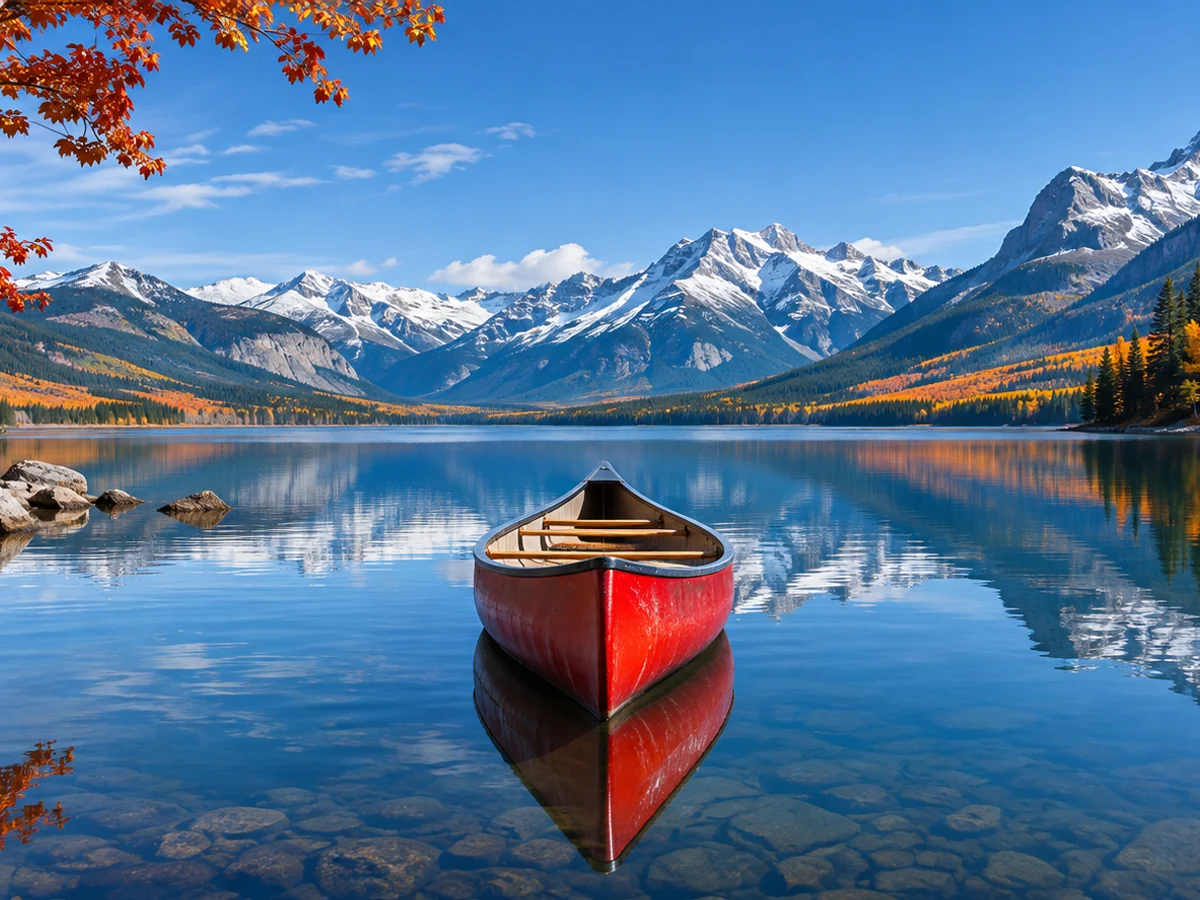
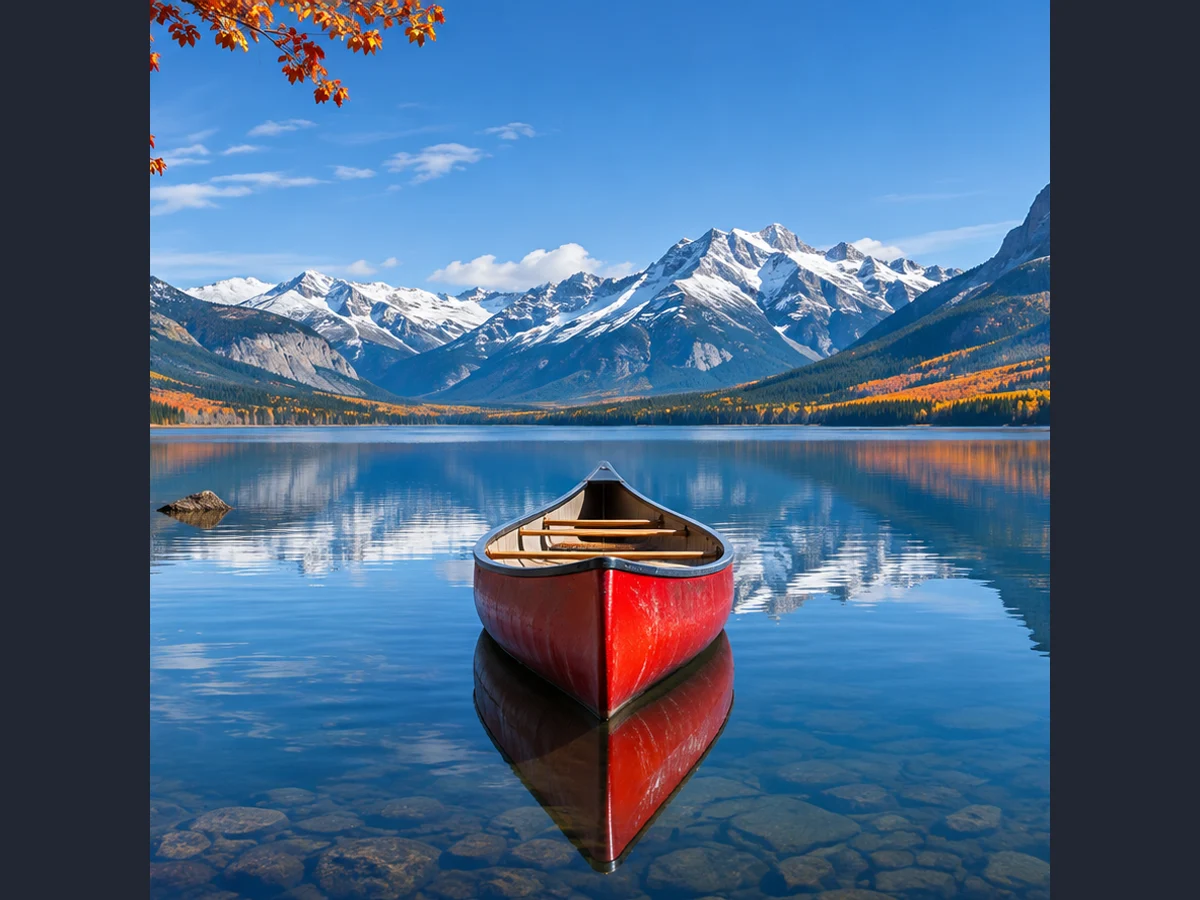
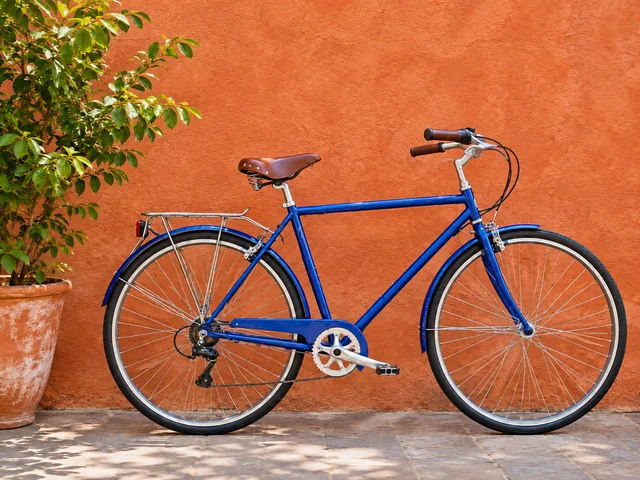
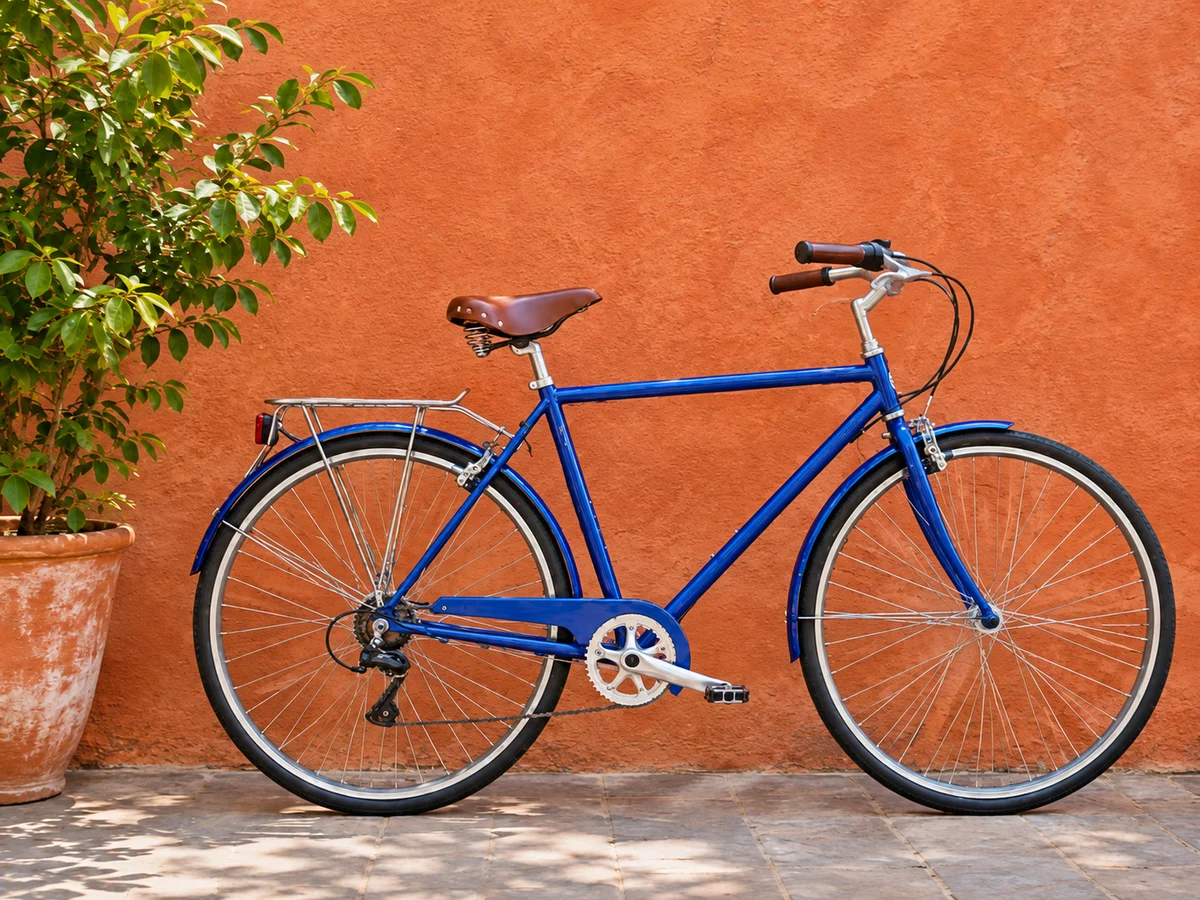
Red canoe: original
Original image
Red canoe: 1:1 center crop
Adjusted image

Free Image Aspect Ratio Changer for Cropping or Padding

Center crop or transparent padding

Set a shape for your next post, slide, or thumbnail with the image aspect ratio changer. Choose a common preset such as 1:1 or 16:9, or enter your own width and height ratio. Center crop uses the middle of the photo to fill the new frame. Keep full image adds clear space around it. Compare both views and see the exact output dimensions before downloading.

Change My Image Ratio
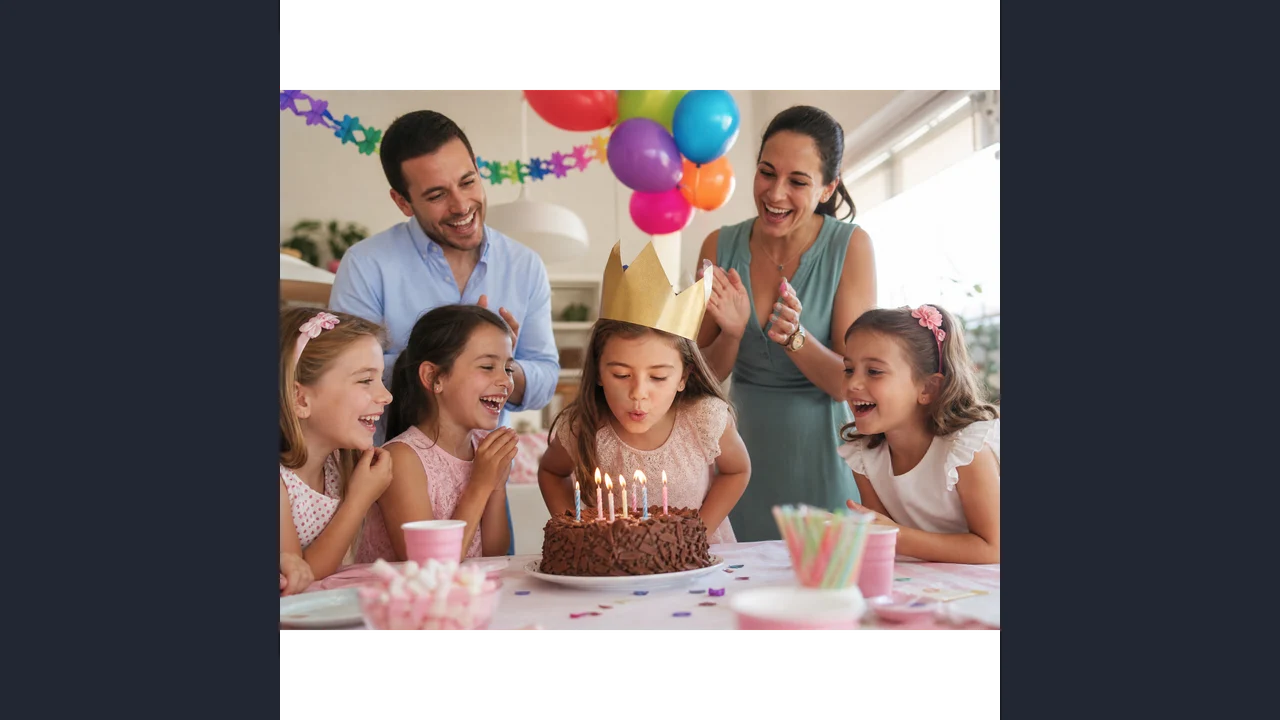
Birthday party: 1:1 with transparent padding
PNG download|Live preview|No Sign Up

How to Use the Image Aspect Ratio Changer

The image aspect ratio changer lets you choose a target frame, decide how the original should fit inside it, and read the output pixel dimensions before saving.

1

Add a photo or graphic

Upload one JPG, PNG, or WebP to the image aspect ratio changer. Look at the original orientation and decide which details need room at the edges. If you need to check the starting dimensions, use the image size checker first.

2

Choose a ratio and framing

In the image aspect ratio changer, select a preset or type two whole numbers under Custom ratio. Center crop fills the new frame with the middle of the photo. Choose Keep full image when the picture needs to remain intact with transparent space around it.

3

Compare dimensions and save

Read the output width and height under the controls. Check the original and output previews for important details that are close to the edges, especially faces in group photos. Download the PNG when the framing fits the destination.

AI Fixes for Harder Photo Problems

When a picture needs whiter teeth, a slimmer face, no glare or a corrected number, these AI photo fixers make the edit for you.

Change Image Aspect Ratio with Crop or Padding

Change image aspect ratio with a centered crop or transparent padding. The image ratio changer previews the whole frame and shows the output width and height in pixels.

Fill a frame with the center of the photo

The image aspect ratio changer uses a center crop to cut away the outer edges and keeps the middle at its original pixel scale. It suits a portrait or product already centered in the image. Check both ends of the preview before saving a narrow crop, where an edge detail may fall outside the new frame.
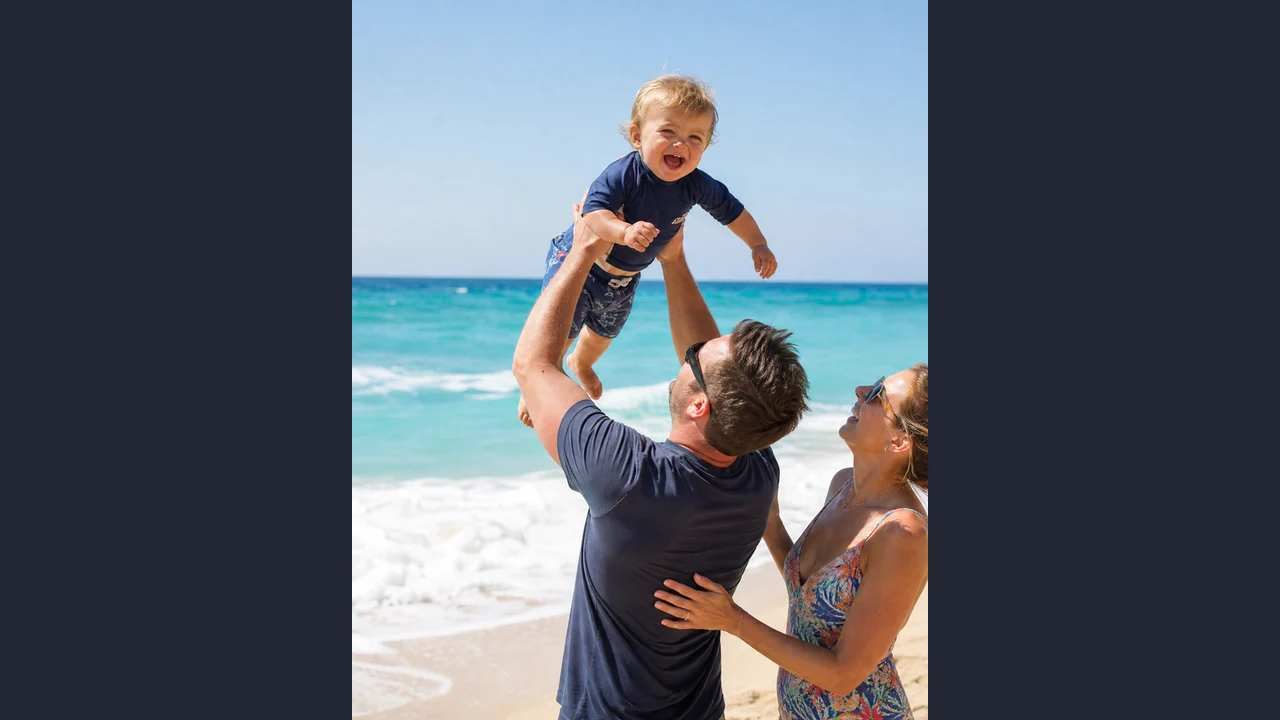
Beach photo: 4:5 center crop

Keep the whole original with padding

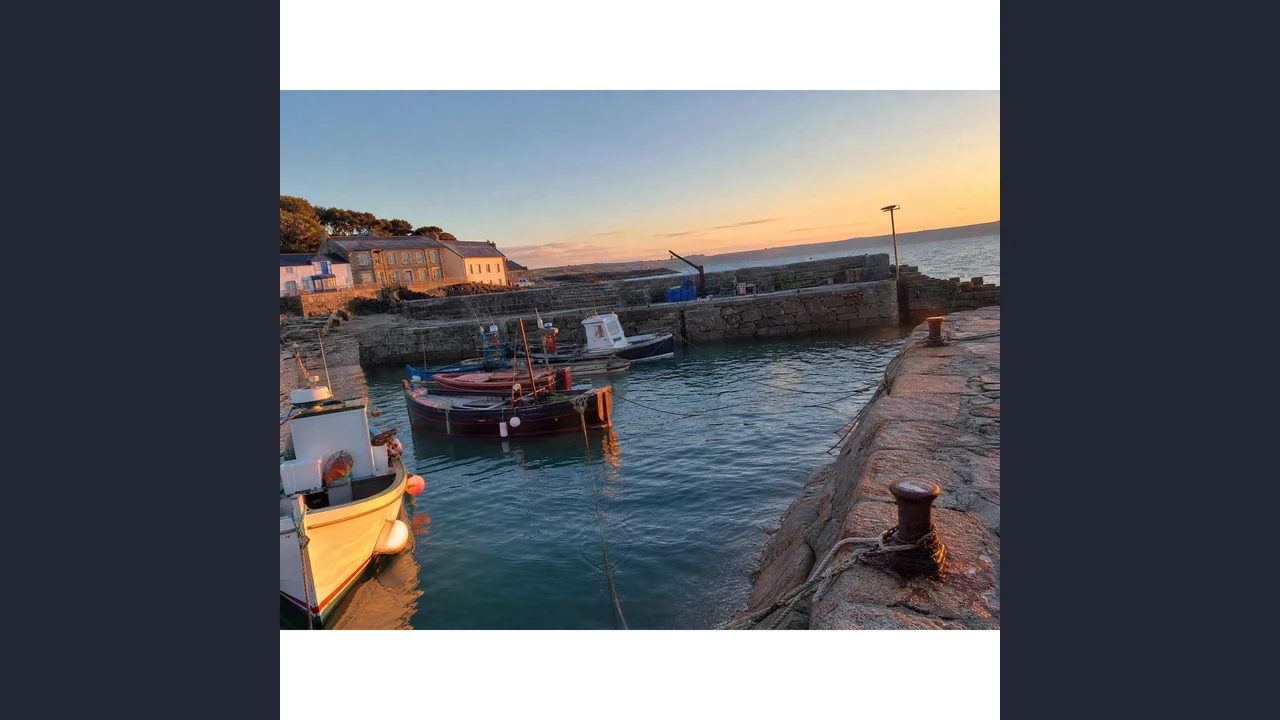
The image aspect ratio changer’s Keep full image mode places the original pixels in the middle and adds transparent space around the image as needed. Use this to fit a wide photo inside a square without cropping. The transparent areas stay available for the background of your slide, post layout, or other composition.

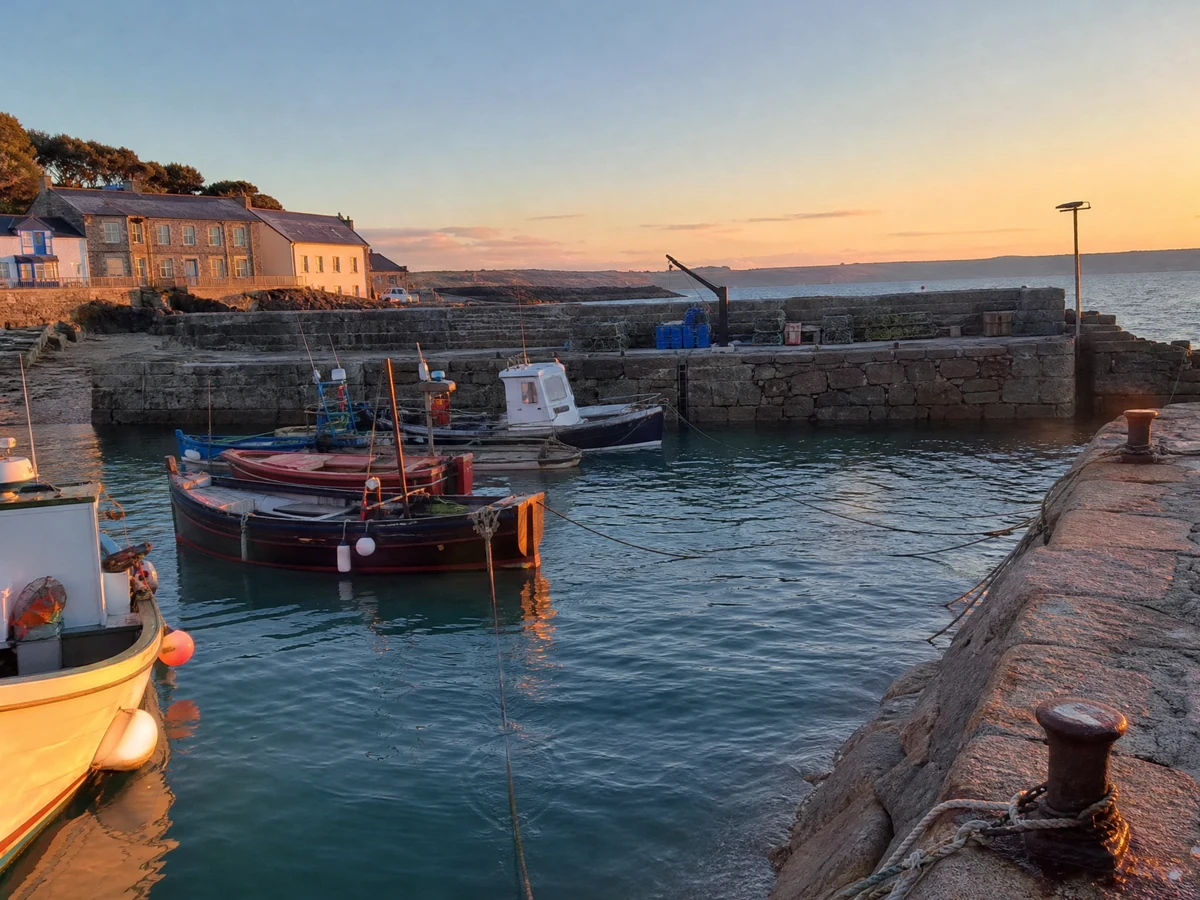
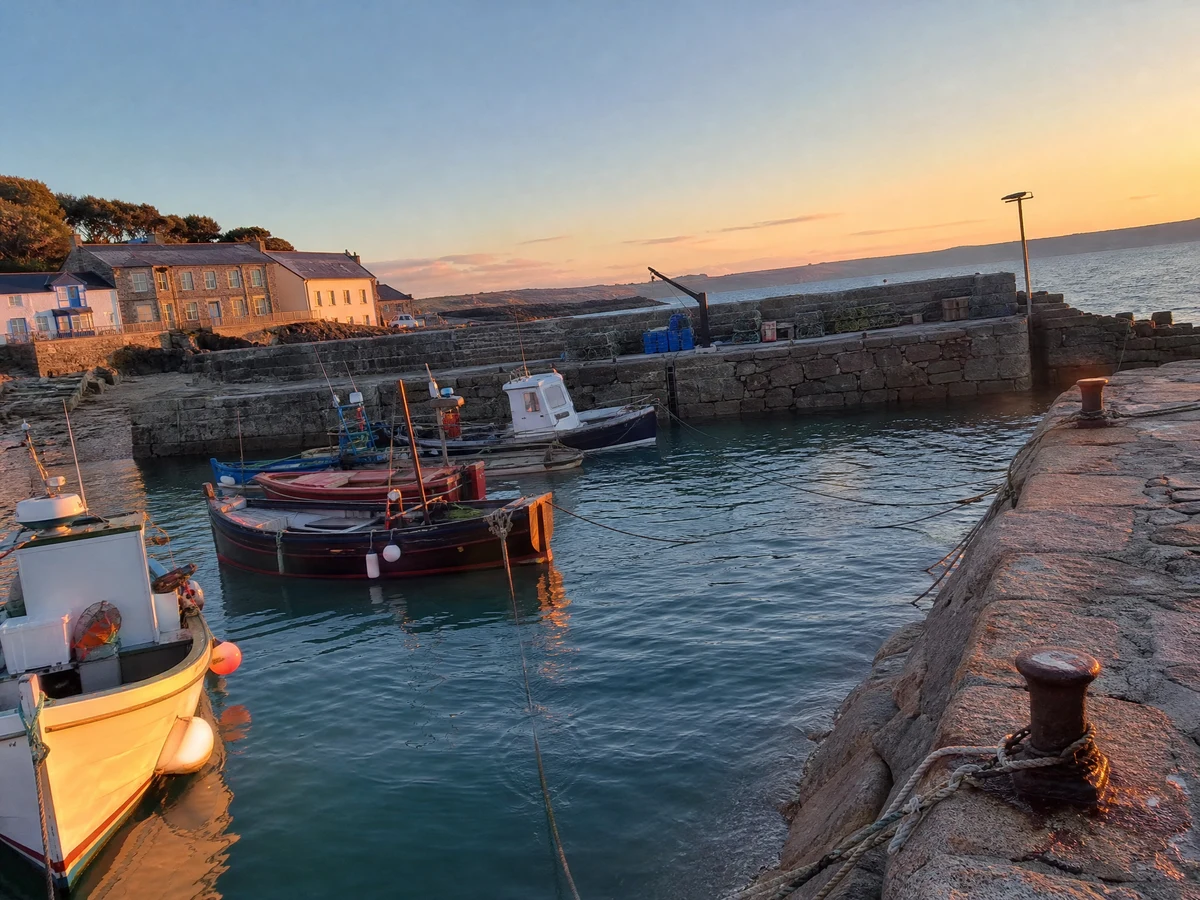
Harbour horizon: 1:1 with transparent padding

Use common or custom proportions

The image aspect ratio changer offers common presets. Choose 1:1, 4:5, 3:2, 4:3, 16:9, or 9:16 to match a frame you use often. If a template specifies an unusual shape, enter whole numbers under Custom ratio. The tool shows the resulting width and height once the selected ratio fits within the export limits.

Garden portrait: 16:9 center crop

Decide with the output dimensions in view

Aspect ratio describes the shape of the image. Use the pixel width and height readout to check what the tool will actually save. Removing pixels at the edges or adding clear space changes the canvas size. The image pixels inside that frame keep their original proportions.

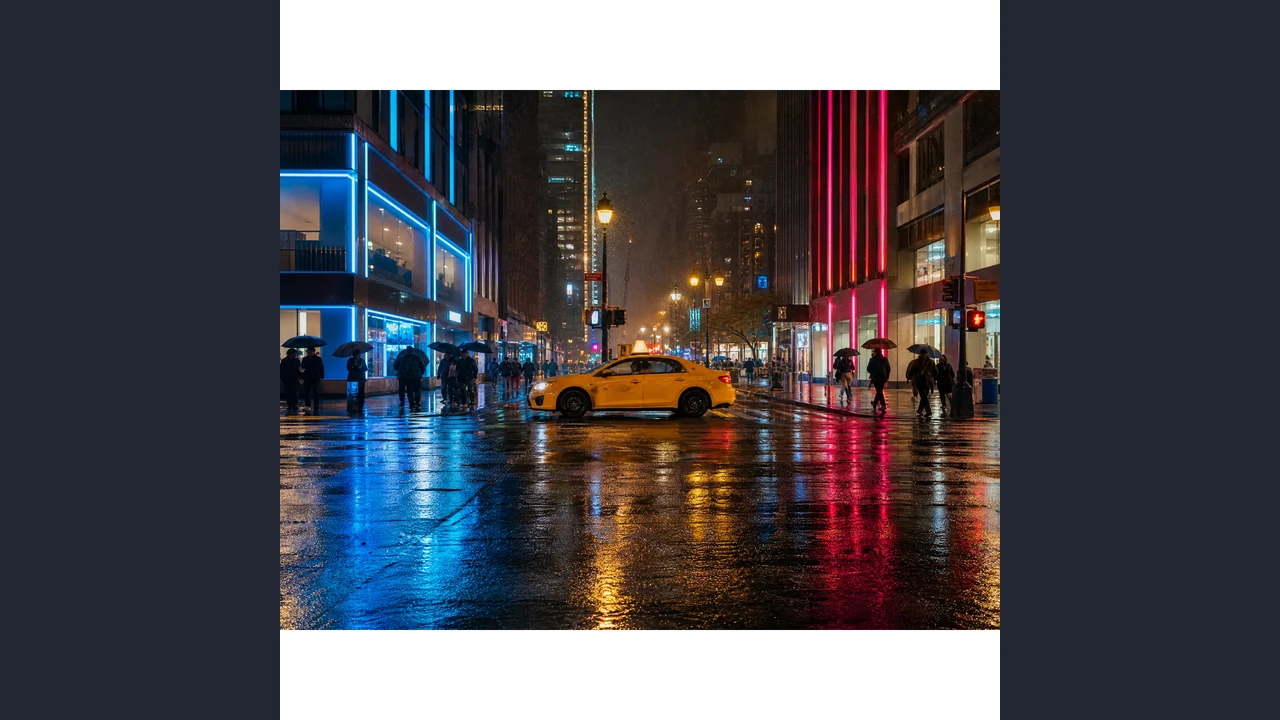
City street: 1:1 with transparent padding

Image Ratio Changer Uses for Photos and Slides

Image aspect ratio changer for these photo and layout tasks.

Square profile thumbnails

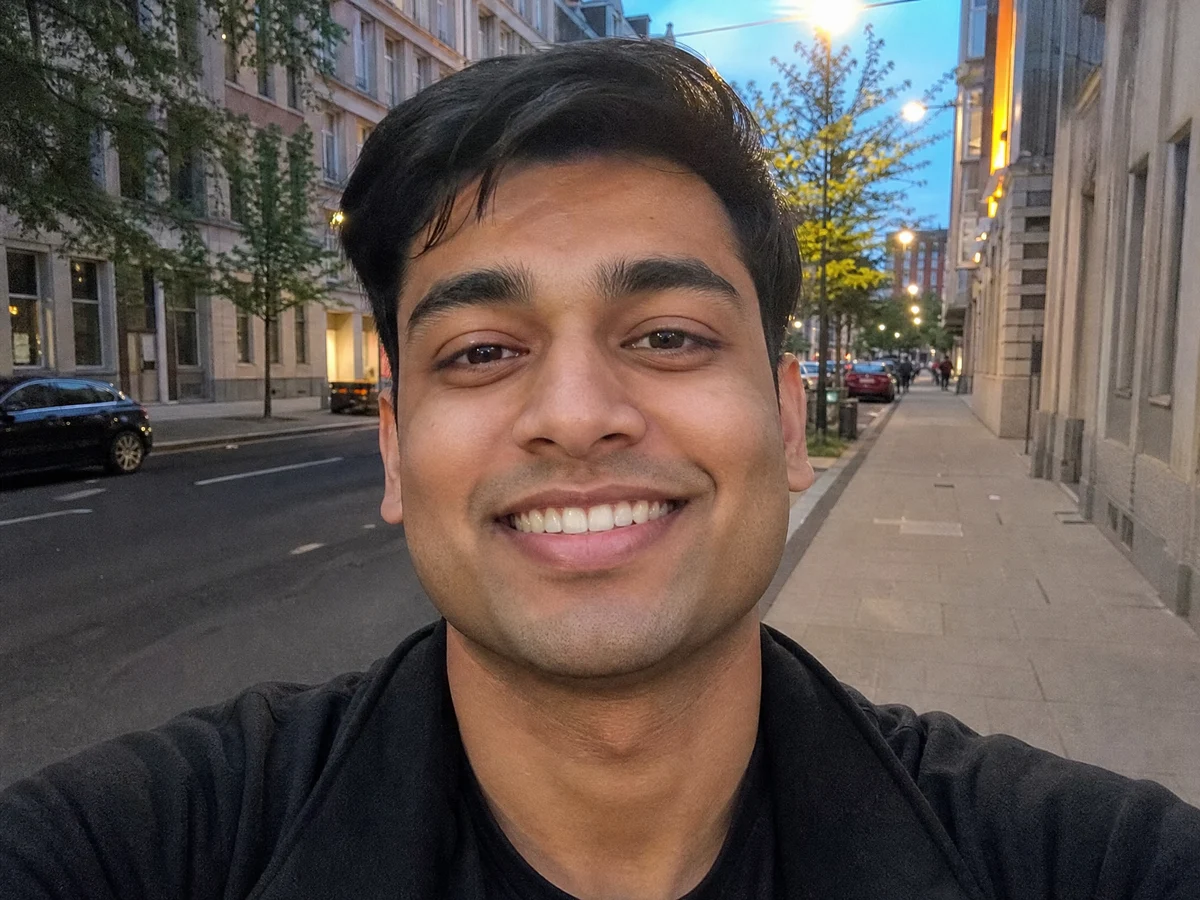
Use a square crop for a portrait with space around the face. Keep full image when a person or prop near the edge belongs in the picture. The image aspect ratio changer lets you compare both frames before exporting a PNG.

Wide slides and video covers

Choose 16:9 for an image headed to a widescreen slide or video cover. Review the top and bottom edges of the preview when you use a center crop. Use the image aspect ratio changer for a copy with the correct frame proportions.

Portrait layouts

Select 4:5 or 9:16 for an upright layout. Use padding when framing a wide scene in an upright space so the original subject stays in view. The image aspect ratio changer shows the output size before you save the taller frame.

Custom print mockups

Enter the width and height ratio of a mockup. Read the actual pixel dimensions before importing the result into your layout, where you can position it on the final page. Keep the original file handy for layouts with a different frame shape.

How People Use the Image Aspect Ratio Changer

My landscape photo had branches at both edges that mattered to the composition. I used the image aspect ratio changer to make a square PNG with transparent padding. Once I placed it on the album page, the page color showed through the margins and the whole scene stayed visible.

Lena Whitaker
Photo Editor

Image Aspect Ratio Changer FAQ

Answers about image aspect ratio changer, supported files, controls, and PNG downloads.

Select 1:1 and choose Keep full image. The image aspect ratio changer adds transparent padding above and below a wide picture, and the downloaded PNG preserves the entire photo.

Center crop and Keep full image both preserve the photo’s original pixel proportions. Center crop trims edges to fill the frame, while Keep full image adds transparent space around the image.

Aspect ratio is the proportion between width and height, such as 4:5. Image size is the actual number of pixels across and down. The image aspect ratio changer shows both the selected ratio and output dimensions.

Custom ratio accepts a whole number from 1 to 999 in each field. The image aspect ratio changer shows the output size when the ratio fits the limit.

The image aspect ratio changer downloads a PNG, including transparency where you have added space. You can open one JPG, PNG, or WebP up to 20 MB and within the pixel limit.

The image aspect ratio changer is free to use. Upload the image, choose a ratio and framing mode, and save a PNG without creating an account or spending credits.

Set Your Ratio with the Image Aspect Ratio Changer

Choose the shape your layout needs and see how the photo fits. The image aspect ratio changer gives you a center crop or a transparent frame and shows the export dimensions before you download.

Change My Image Ratio
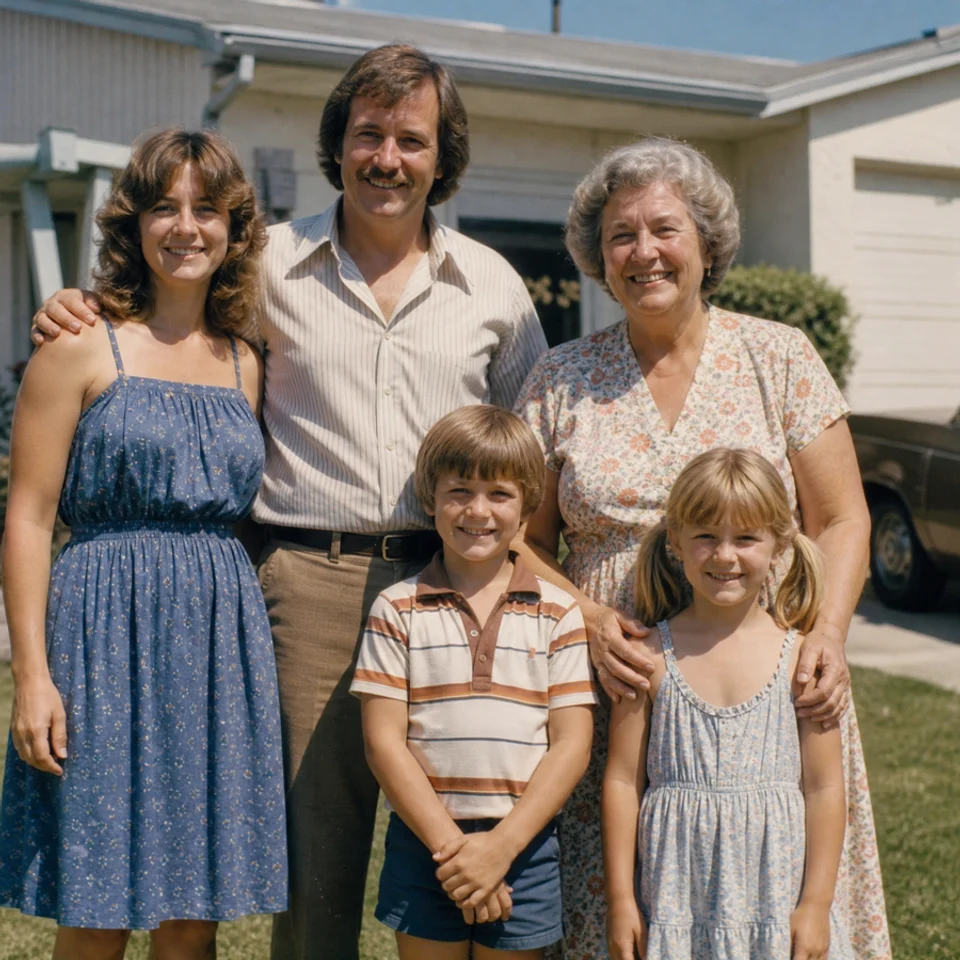
Vintage photo: 1:1 center crop