


























BLACK FRIDAY

2× credits · Ends Dec 1

Ends Dec 1, 11:59 pm PTGrab 2× credits
Crop Image into Shape

Choose a circle, heart or star, adjust its size and position, then download your cutout as a transparent PNG.

JPG, PNG or WEBP · up to 20 MB

Crop shape
90%
50%
50%

Crop image into shape online free · no sign up · no watermark.

No limit on downloads.

Live preview
Botanical print original illustration clipped with the actual circle mask to transparency
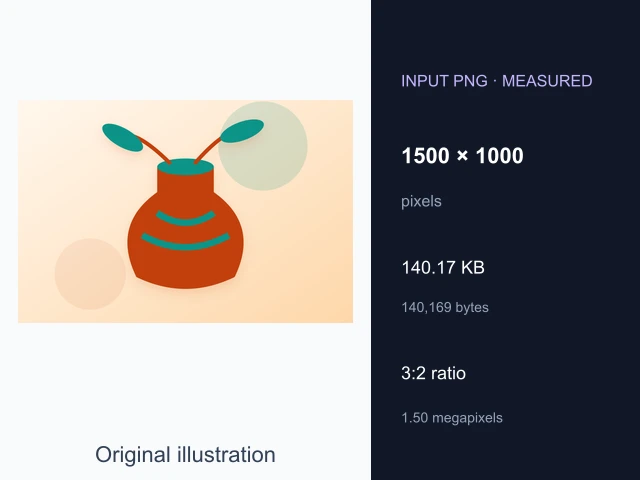
Botanical print original illustration before shape cropping
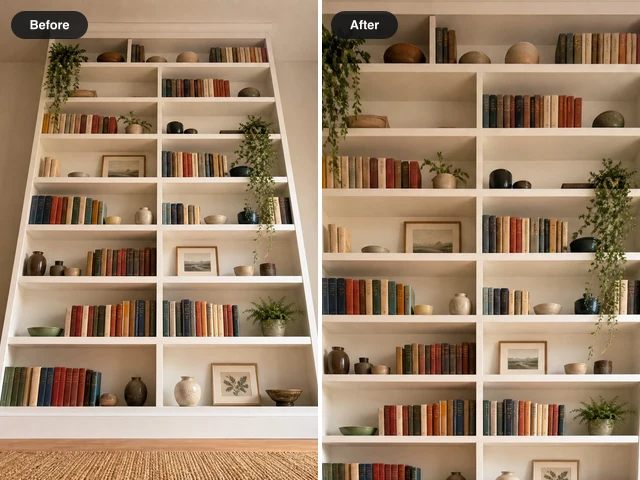
BeforeAfter

Crop Image into Shape: Free Circle, Heart and Star PNGs

Frame the part you love in a circle, heart or star and take it into your design.

Turn a rectangular picture into a cutout for a profile, card or collage. Crop an image into a shape by choosing a circle, heart or star, then adjust its size and position around the part you want to keep. Watch the transparent preview as you frame it, and download a PNG on the original image canvas to place over your chosen background.

Crop My Image Shape
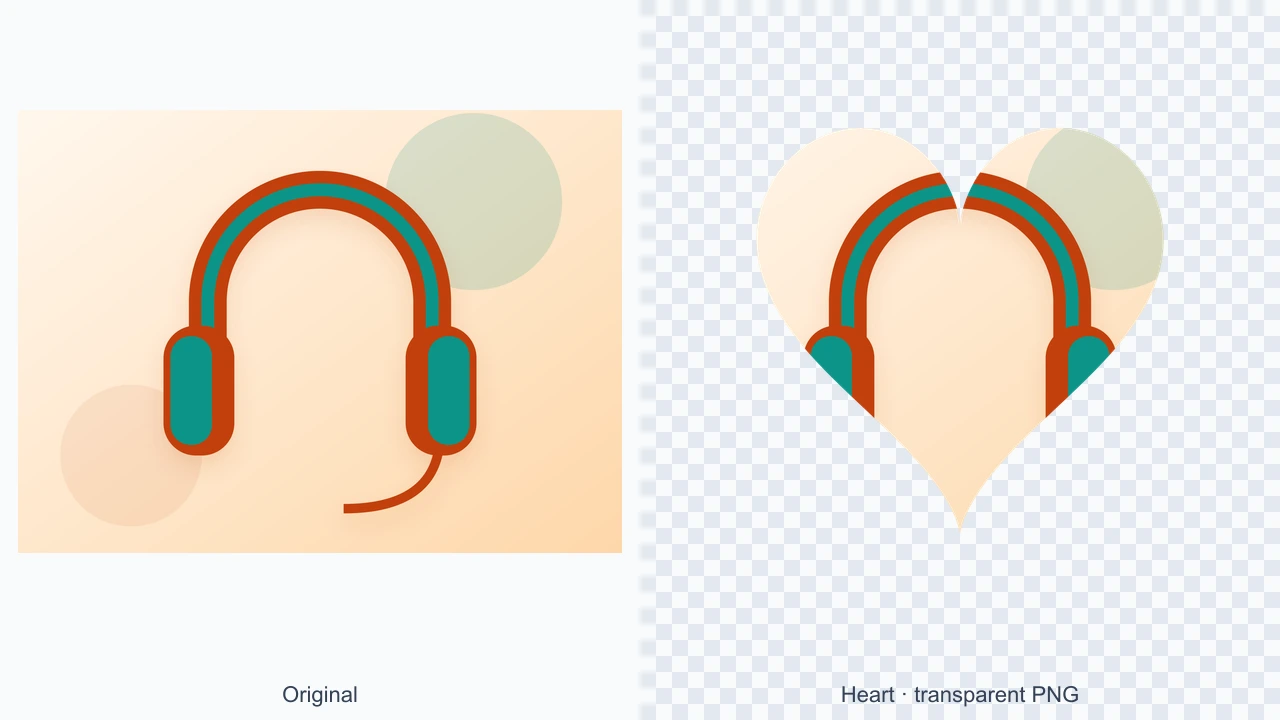
Headphones original illustration with an actual transparent shape crop on a checkerboard display
Circle, heart and star|Transparent PNG cutout|No Sign Up|No Watermark

How to Crop Image Into Shape Online

Crop an image into a shape by framing the part of your picture that belongs in the finished design. The controls let you choose a shape, size it and position it before downloading. Start with one photo or illustration and use the transparent preview to check your composition.

1

Choose a Photo or Illustration

Open a JPG, PNG or WebP up to 20 MB. To crop an image into a shape, begin with a picture that gives your subject enough room around its edges for the cutout.

2

Set the Shape and Framing

Choose Circle, Heart or Star, then use Shape size and the horizontal and vertical position sliders. Crop an image into a shape around the part you want to keep, checking the transparent preview.

3

Check the Edges and Save PNG

Review the visible subject and the shape edges before choosing Download transparent PNG. Keep the resulting cutout for your design; the PNG preserves the original canvas dimensions with transparency outside the chosen shape.

AI Fixes for Harder Photo Problems

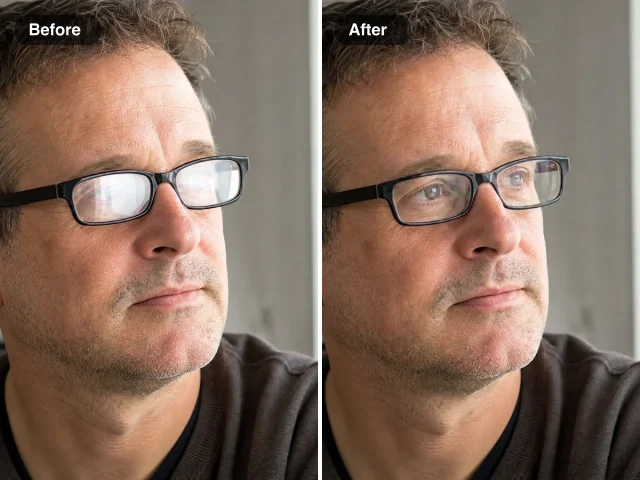
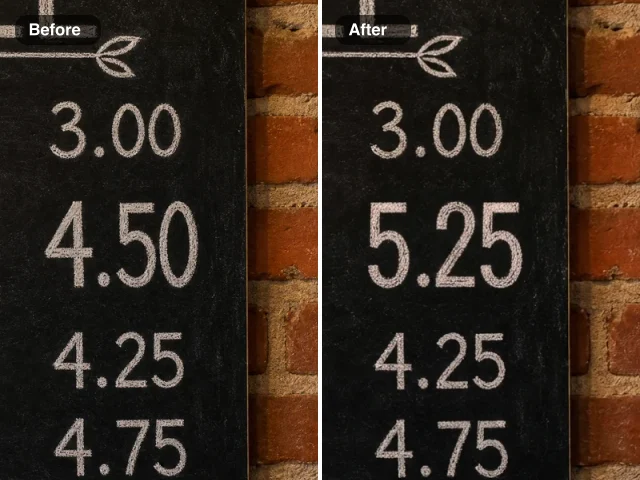
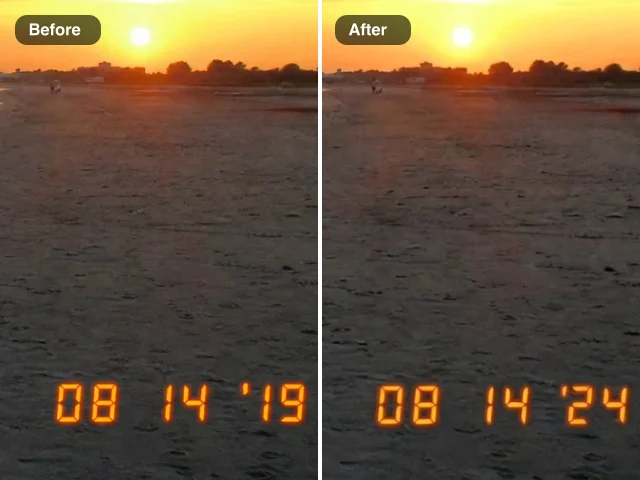
When a picture needs whiter teeth, a slimmer face, no glare or a corrected number, these AI photo fixers make the edit for you.

Crop Pictures Into Shapes That Fit Your Design

Crop pictures into shapes with a clear view of what stays in the cutout. Pick a circle, heart or star, adjust its framing and save the transparent PNG. These controls help you crop an image into a shape that fits the subject and the design you are preparing.

Three Shapes with Distinct Uses

Crop an image into a circle for a portrait, crop an image into a heart for a card, or choose a star for a decorative badge. Crop an image into a shape by choosing the option that fits your design, then keep the same picture while you compare the different frames.
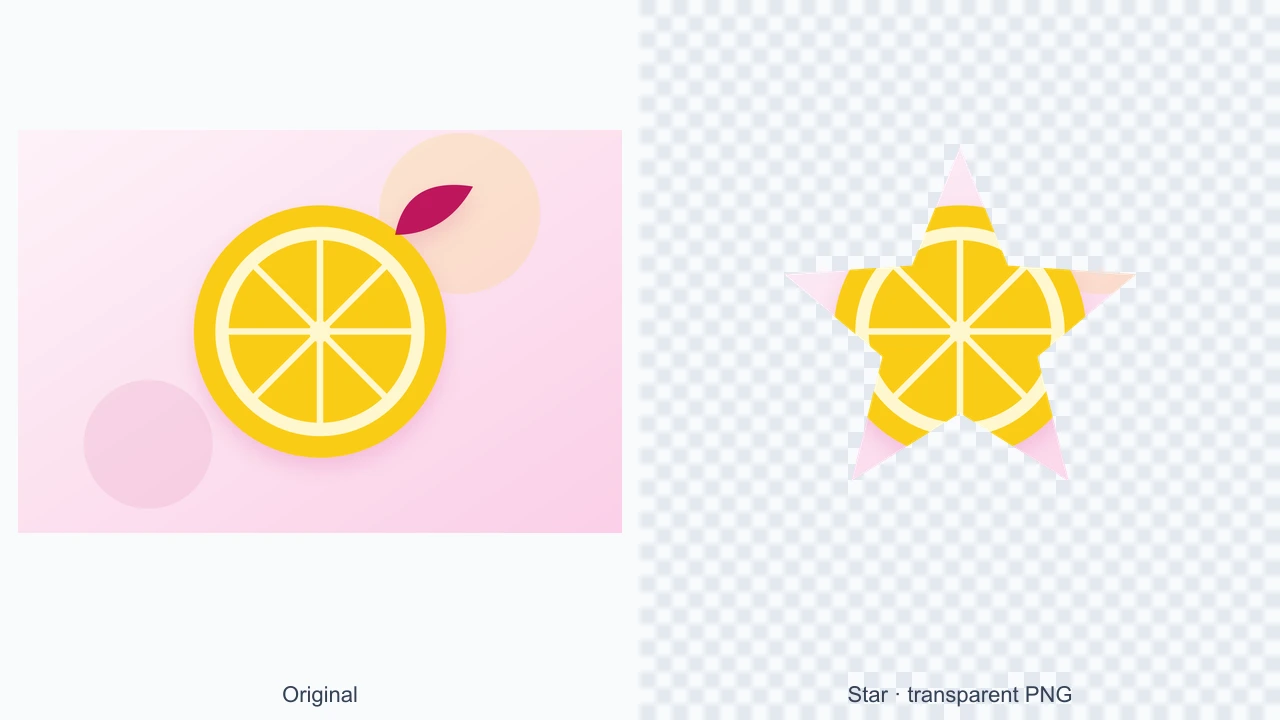
Citrus poster original illustration with an actual transparent shape crop on a checkerboard display

Framing You Can Adjust

Position the shape around the face, illustration or detail you want to keep. The horizontal and vertical sliders move its center across the picture, while Shape size changes its span. Crop an image into a shape and use the preview to see whether the subject is comfortably inside the boundary.

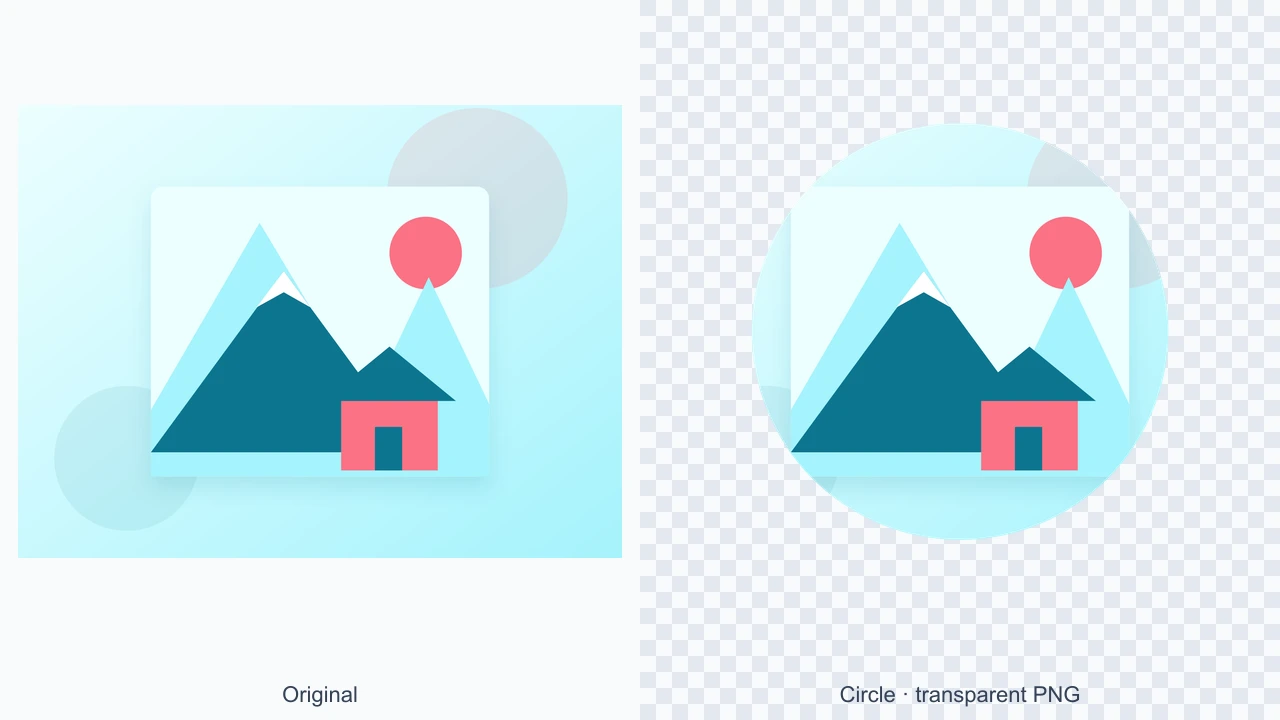
Mountain cabin original illustration with an actual transparent shape crop on a checkerboard display

Transparency Around the Cutout

The area outside the selected shape becomes transparent in your PNG. That lets a card background, slide color or collage layer show around the cutout when you place it in a design. Crop an image into a shape, then inspect the checkerboard preview to see the transparent area before saving.

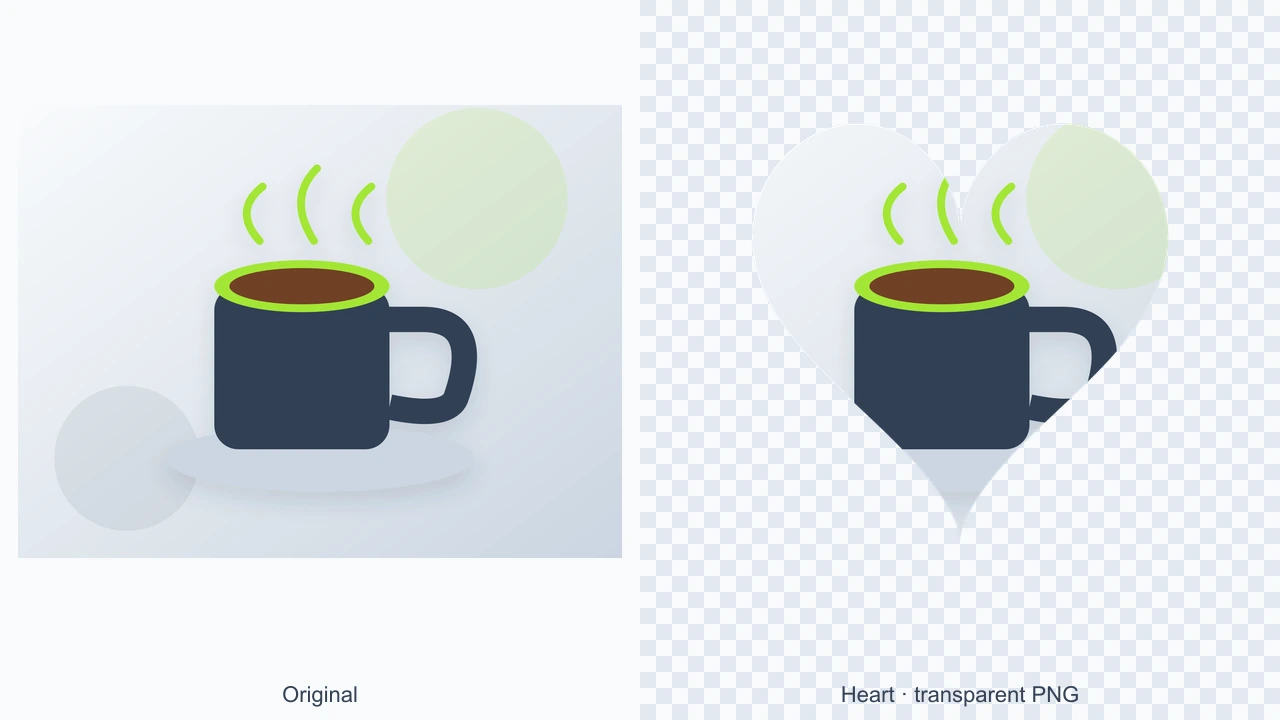
Coffee kit original illustration with an actual transparent shape crop on a checkerboard display

Your Original Pixels Inside the Frame

The crop keeps the source pixels inside the selected shape and smooths the edge with transparency. Your downloaded PNG retains the original canvas width and height, making it easy to keep its placement in an existing layout. Crop pictures into shapes, then choose the right position and size for the design.

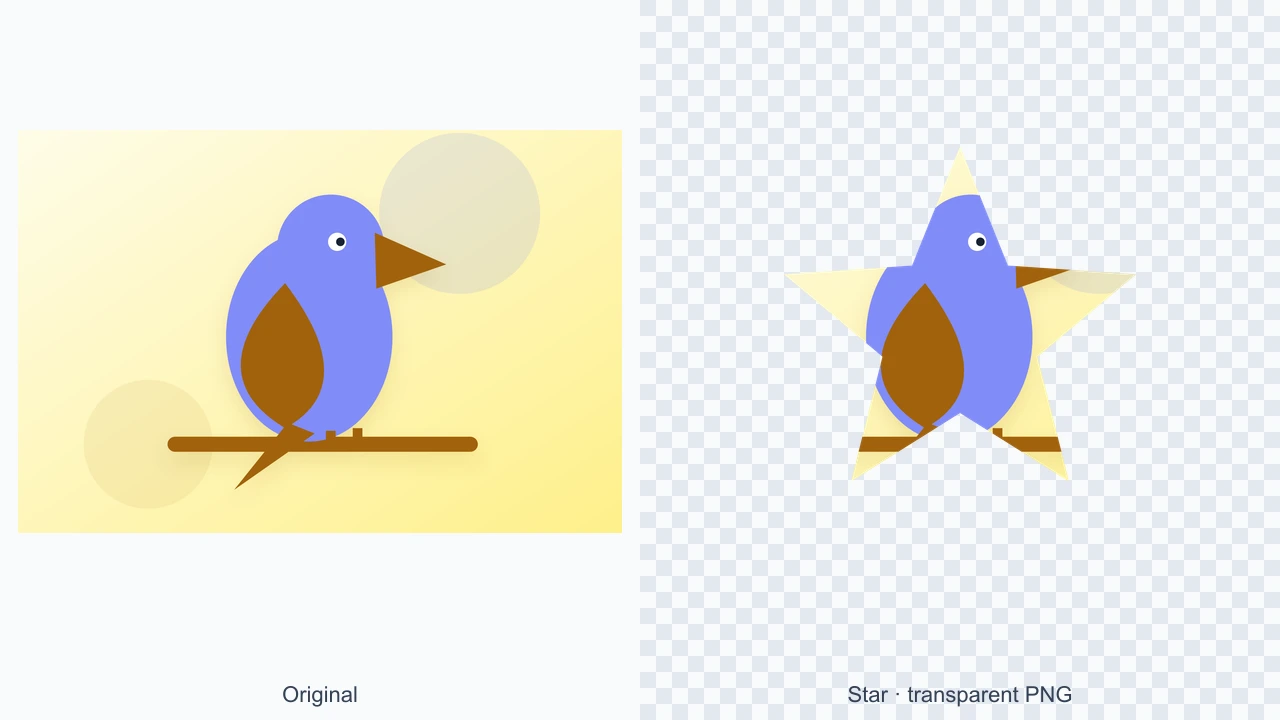
Tropical bird original illustration with an actual transparent shape crop on a checkerboard display

Crop an Image Into a Shape for Profiles, Cards and Stickers

A shaped cutout can make a picture fit a more personal or decorative layout. Crop pictures into shapes for a card, a profile concept or a collage, then place the transparent PNG over your own background. Each example uses the same framing controls to create a different design element.

Profile and Team Layouts

Frame a portrait in a circle before placing it in a team slide or profile concept. Crop an image into a shape with the face centered, then check the headroom and edges in the preview before saving the transparent PNG.

Personal Cards and Invitations

Use a heart-shaped photo as a detail on a birthday card, invitation or memory page. Crop an image into a shape around the people or moment you want to feature, then place the PNG over your own card artwork.

Collages and Scrapbook Pages

Bring a travel photo or illustration into a scrapbook as a circle, heart or star. Crop an image into a shape that fits the page, then move the transparent cutout among your other pictures and decorative elements in your layout.

Stickers and Decorative Badges

Choose a star for illustrated artwork, a small decorative picture or a badge concept. Crop pictures into shapes and adjust the framing so the important detail remains visible, then use the transparent PNG as an element in your design file.

How People Crop Images into Shapes

I needed a heart cutout for a birthday card with a pale blue background. I used Crop Image into Shape and moved the picture until both faces fit inside the heart. The transparent PNG dropped onto the card cleanly, with the blue paper visible around the photo.

Leah Harrington
Stationery Designer

Crop Image Into Shape Questions, Answered

Find out how to crop an image into a shape, adjust its framing and save a transparent result. These answers cover the circle, heart and star options, the placement controls and the dimensions of your downloaded PNG, so you can choose the right cutout for your design.

Choose a JPG, PNG or WebP, select Circle, Heart or Star, and adjust the size and position controls. Crop an image into a shape while watching the preview, then choose Download transparent PNG. Check that your subject sits inside the boundary before saving the cutout for your profile concept, card or collage.

You can crop pictures into shapes online for free, with no sign up or login. Choose one image up to 20 MB, frame it with the available shape controls and download the PNG. This tool uses zero credits, so there is no account step between choosing your picture and taking away the cutout.

Select Circle, then center and size the frame around your portrait. When you crop an image into a circle, inspect the edges before saving the transparent PNG. You can then use that circular cutout in a profile layout or a team presentation.

Choose Heart to crop an image into a heart with transparency around the outside. Use the position sliders to place the people or detail inside the frame, then adjust its size and check the preview. The downloaded PNG keeps that transparent area for use over a card background or collage.

The shaped PNG downloads with no watermark or added branding. Crop an image into a shape, check the transparent preview and choose Download transparent PNG. The result contains the source pixels inside your chosen frame, with transparent space outside it, ready to place into the design you are working on.

Use Shape size to change the shape from 20% to 100% of the shorter image edge. The horizontal and vertical position controls move its center across the original picture. You can crop pictures into shapes near a particular detail, or choose Reset crop to restore the centered circle and start again.

Your PNG keeps the original image canvas width and height. When you crop an image into a shape, pixels outside the frame become transparent rather than the canvas being trimmed to the cutout. This preserves your source resolution and gives you transparent space around the shape to position in another layout.

Crop Image Into Shape Free Now

Choose the picture you want in your next design, then crop an image into a shape that fits it. Select a circle, heart or star, check the framing and download a transparent PNG with no watermark. Make your cutout online for free, with no sign up.

Crop My Image Shape
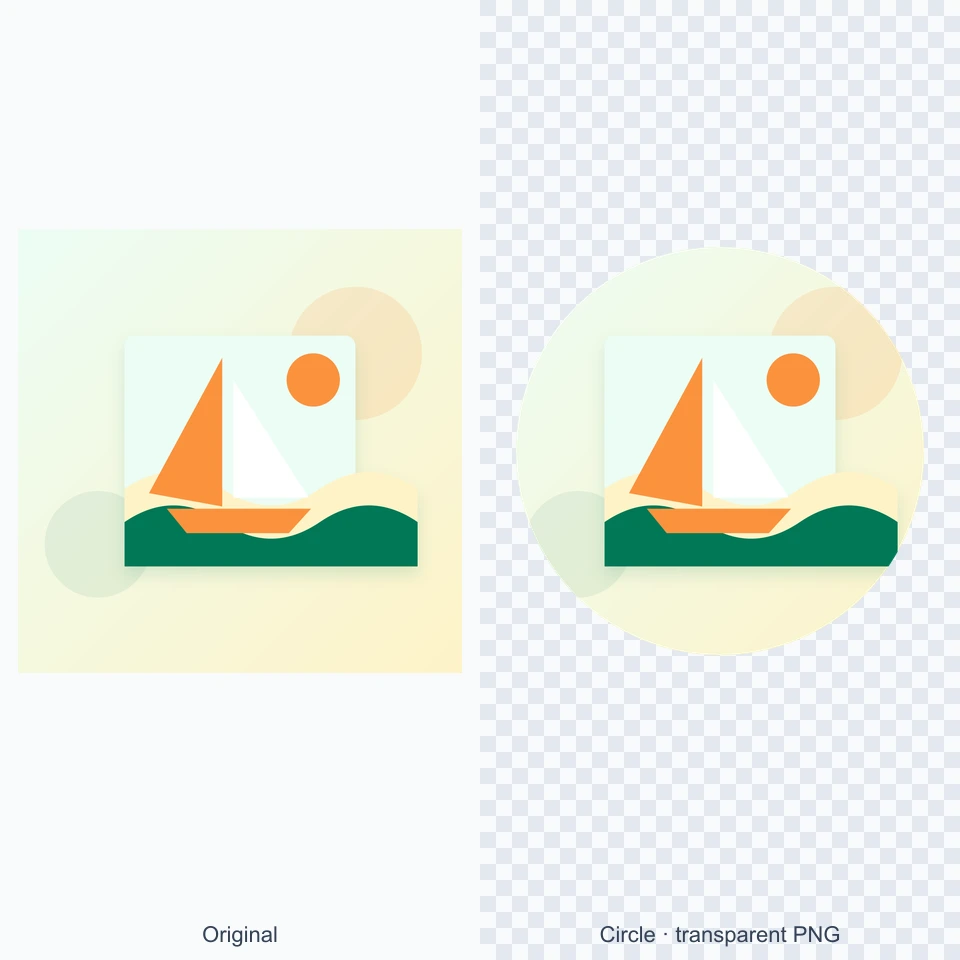
Sailing poster original illustration with an actual transparent shape crop on a checkerboard display